
Skip to content

3 files

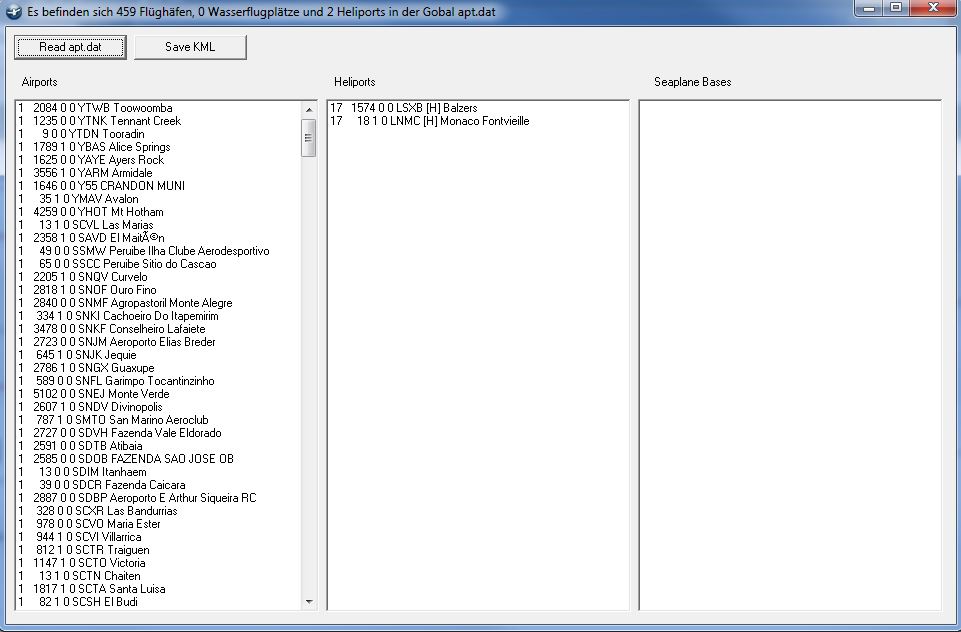
  1. Dieses kleine Tool ist für alle die gerne wissen möchten, wie viele Airports in der „Global Airports“ apt.dat sind.
    Das Tool muss im Ordner “..\X-Plane\Custom Scenery\Global Airports\Earth nav data\” geöffnet werden oder ihr kopiert die apt.dat Datei von dort in ein Temporäres Verzeichnis und startet dann das Tool.
    Das Programm kann die Datei leider noch nicht selber finden.
    Nach dem Start und einem Klick auf „Read apt.dat“ werden die Airports, Heliports und Seaplane Bases aufgelistet.
    Oben im Header kann man die Anzahl entnehmen.
    Klickt man auf „Save KML“ wird eine Google Earth kml Datei erzeugt. Diese Datei wird im gleichen Ordner gespeichert (also da, wo sich auch das Programm befindet).
     
    • 87 Downloads
  2. This is a selection of easyJet's latest 2019 onboard announcements for the A319/A320 only
     
    there is also a turbulence announcement included i have this under wiper R slow
     
    enjoy
    • 3460 Downloads
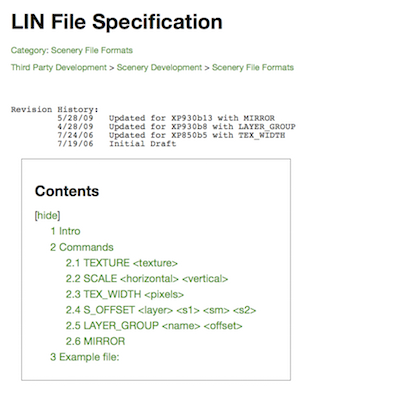
  3. On behalf of Marc Leydecker, Aerosoft is pleased to offer you this comprehensive LIN File Line specification tutorial.
    Intro 
    Painted line files (.lin) define taxiway markings that can be draped over DSFs, although they could can be used for other purposes too. 
    Painted line files are standard X-Plane 8/9 text files starting with a header and then commands. The # defines a comment. For a .lin file to be valid, it must contain a TEXTURE command, a SCALE command and an S_OFFSET command. 
    A 850 LINE_PAINTPainted lines are defining polygons in the DSF file. The polygon may have windings - only lat and lon coordinates are needed. The polygon parameter is used to indicate a closed loop (1) or open chain (0). 
    If two coordinates are provided (lon, lat) then the line is made of line segments. But if it is made of four coordinates (lon, lat, control lon, control lat) then it is interpreted as bezier curves.
    • 30 Downloads

Important Information

We have placed cookies on your device to help make this website better. You can adjust your cookie settings, otherwise we'll assume you're okay to continue. Privacy Policy & Terms of Use

Account

Navigation

Search

Search

Configure browser push notifications

Chrome (Android)
  1. Tap the lock icon next to the address bar.
  2. Tap Permissions → Notifications.
  3. Adjust your preference.
Chrome (Desktop)
  1. Click the padlock icon in the address bar.
  2. Select Site settings.
  3. Find Notifications and adjust your preference.