
Skip to content

Captain Gunadeep

Members
  • Joined

  • Last visited

Files posted by Captain Gunadeep

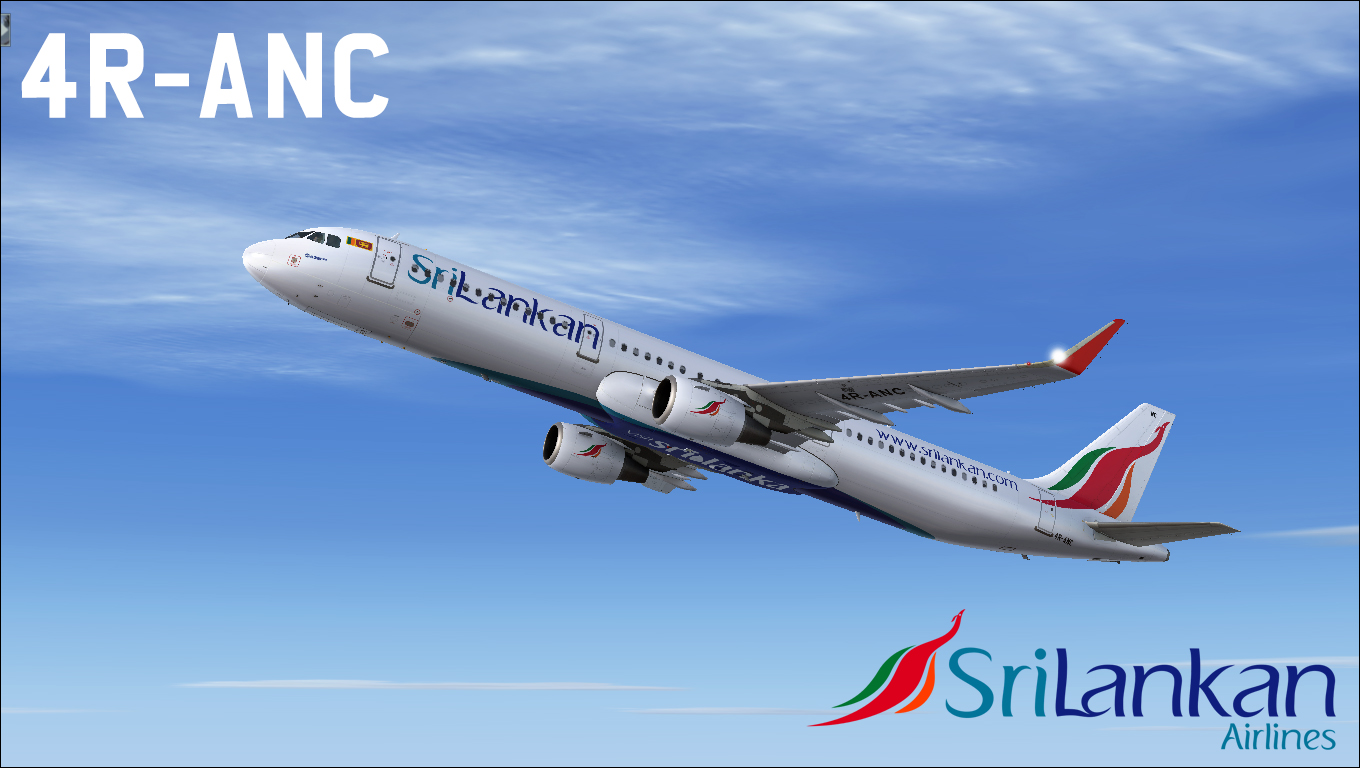
  1. Sri Lankan Airlines first Airbus A321-251N registered 4R-ANC. 
     
    Compatible with Aerosoft Livery Manager
    • 660 Downloads
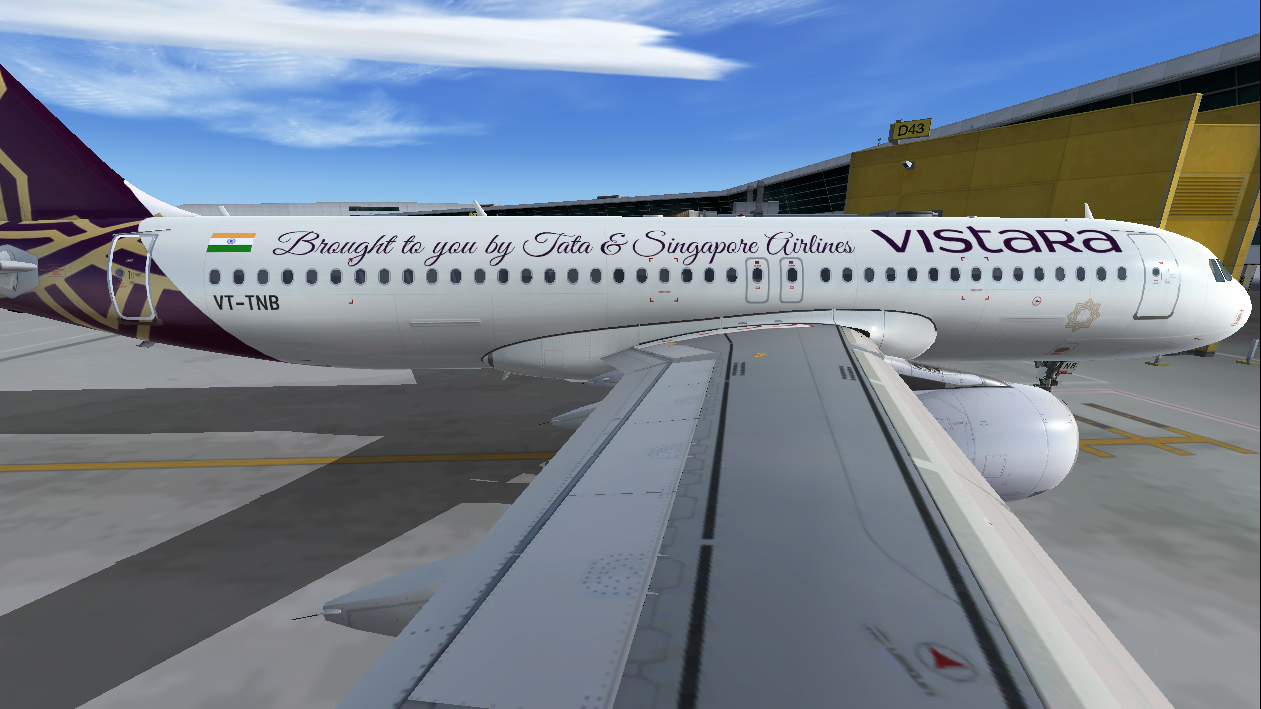
  2. Vistara Airlines first Airbus A320-251N registered VT-TNB.
     
    Compatible with Aerosoft Livery Manager
    • 666 Downloads
    • 1 Comments
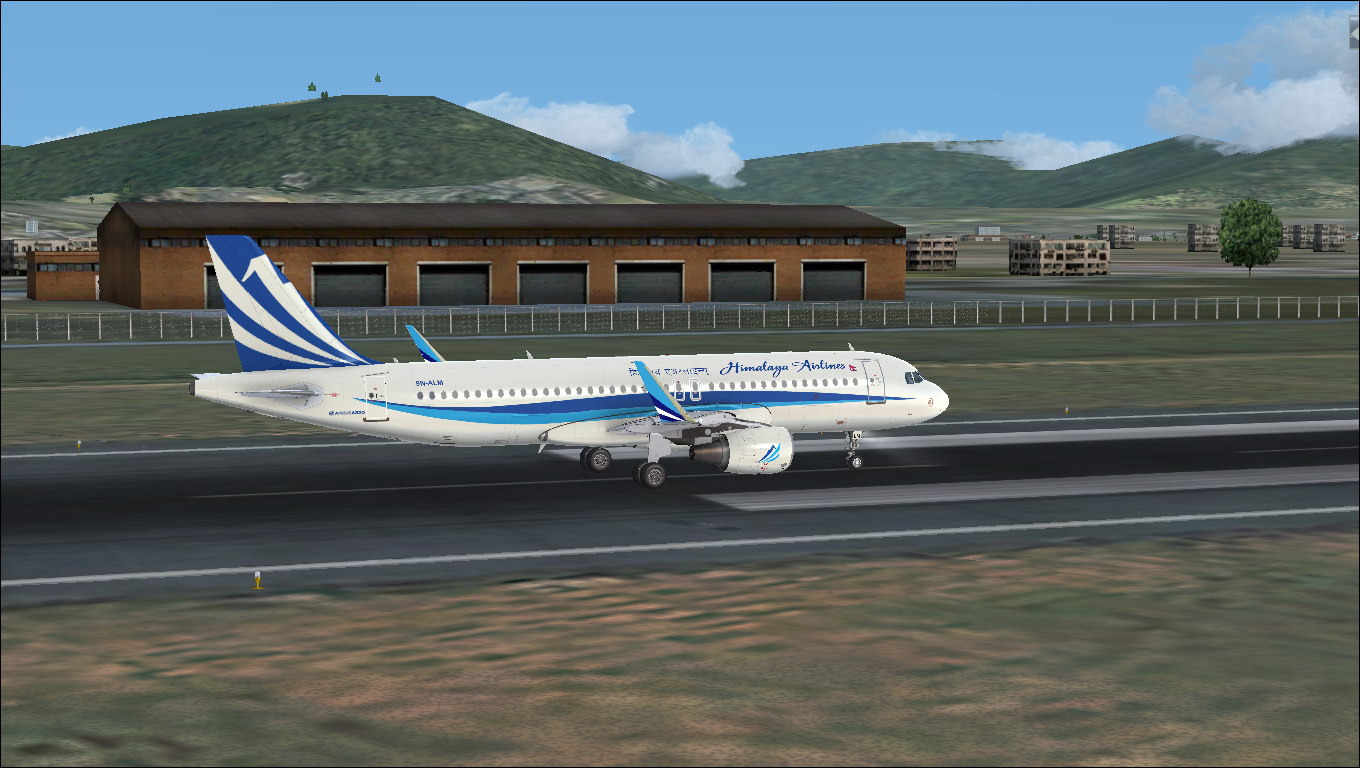
  3. Himalaya Airlines Airbus A320-200 CFM Neo HD Repaint for Aerosoft A320 X Extended. Himalaya Airlines (IATA: H9), a new Nepal-China joint venture airline, is an international scheduled full service air carrier incorporated and based in Nepal.
    • 596 Downloads
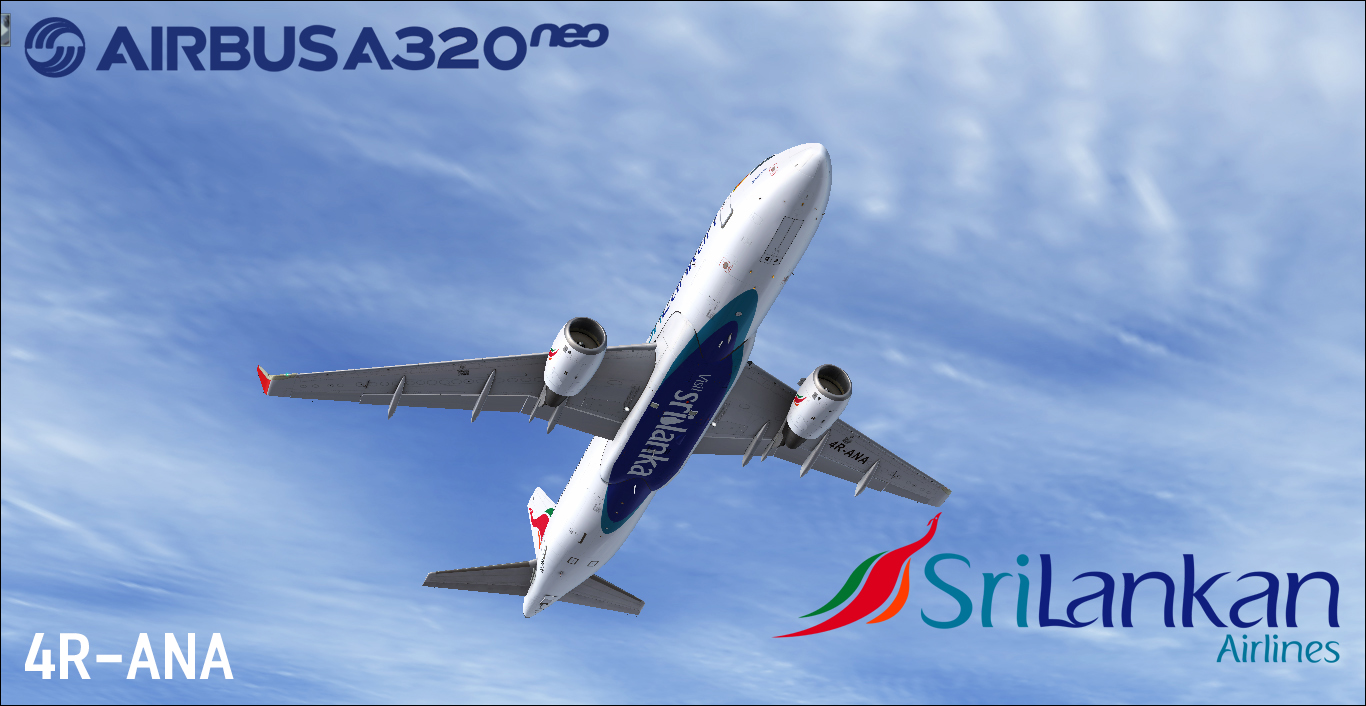
  4. Sri Lankan Airlines first Airbus A320-251N registered 4R-ANA. 
     
    Compatible with Aerosoft Livery Manager
    • 789 Downloads
    • 2 Comments
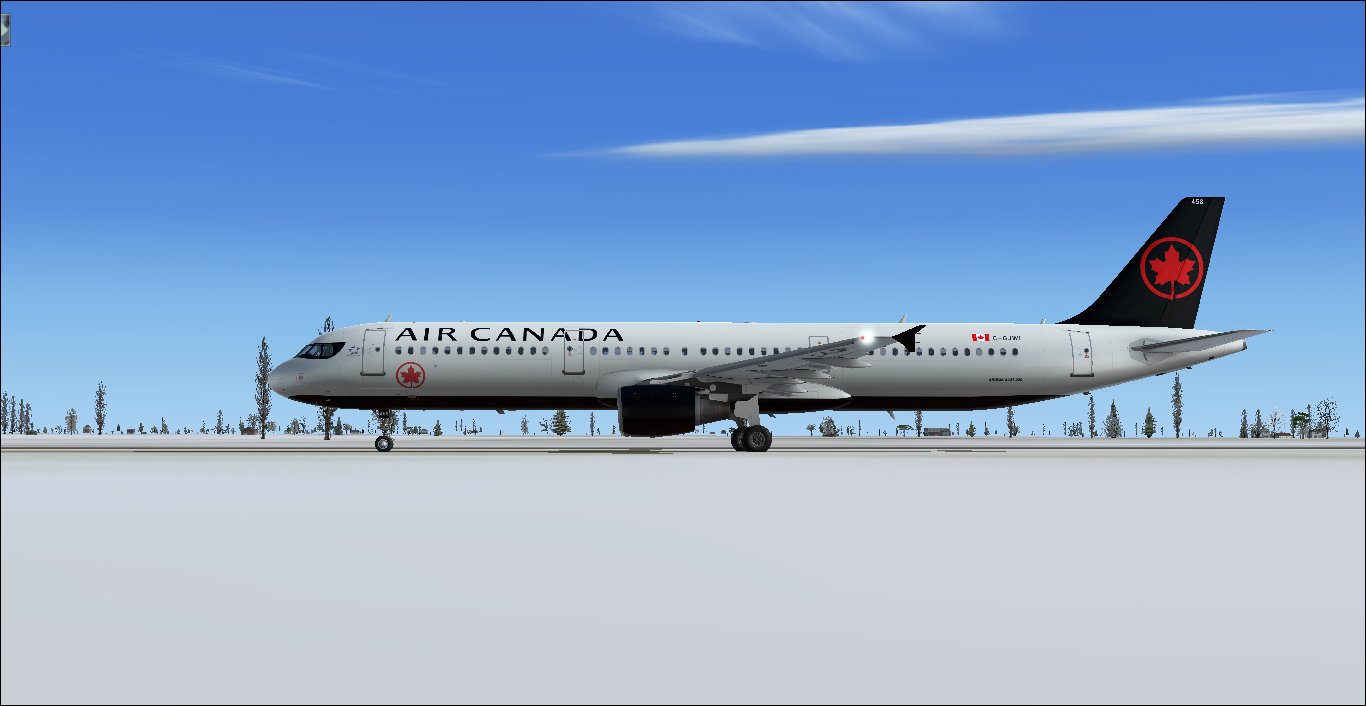
  5. This ZIP - file contains repaints in the colors of Airbus A321 CFM Air Canada New Livery C-GJWI (clean and dirt).
    These textures can be used for the Airbus X and the Airbus X Extended!
    Repaint by Captain Gunadeep, based on the Aerosoft paintkit.
     
     Compatible with Aerosoft Livery Manager
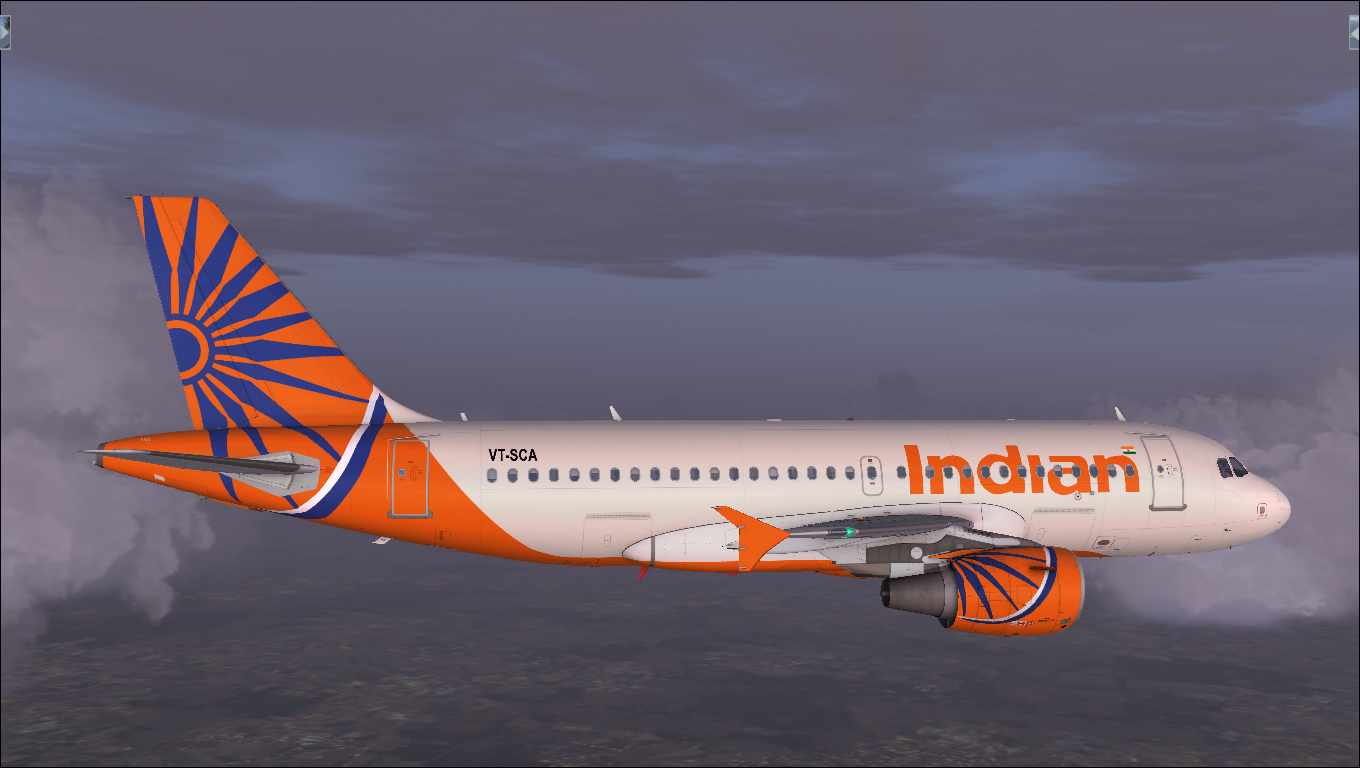
    • 2976 Downloads
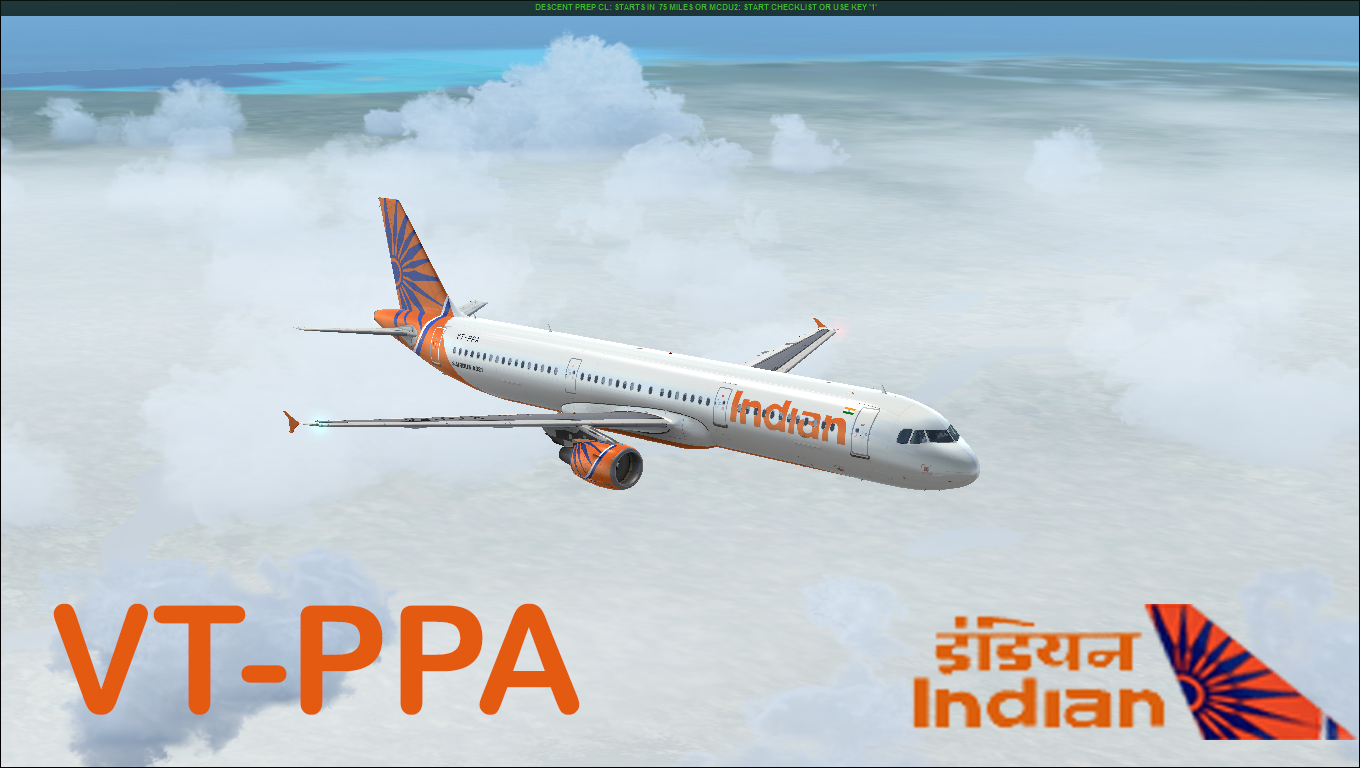
    • 10 Comments
  6. Visit http://www.newxtrend.com for more Liveries
     
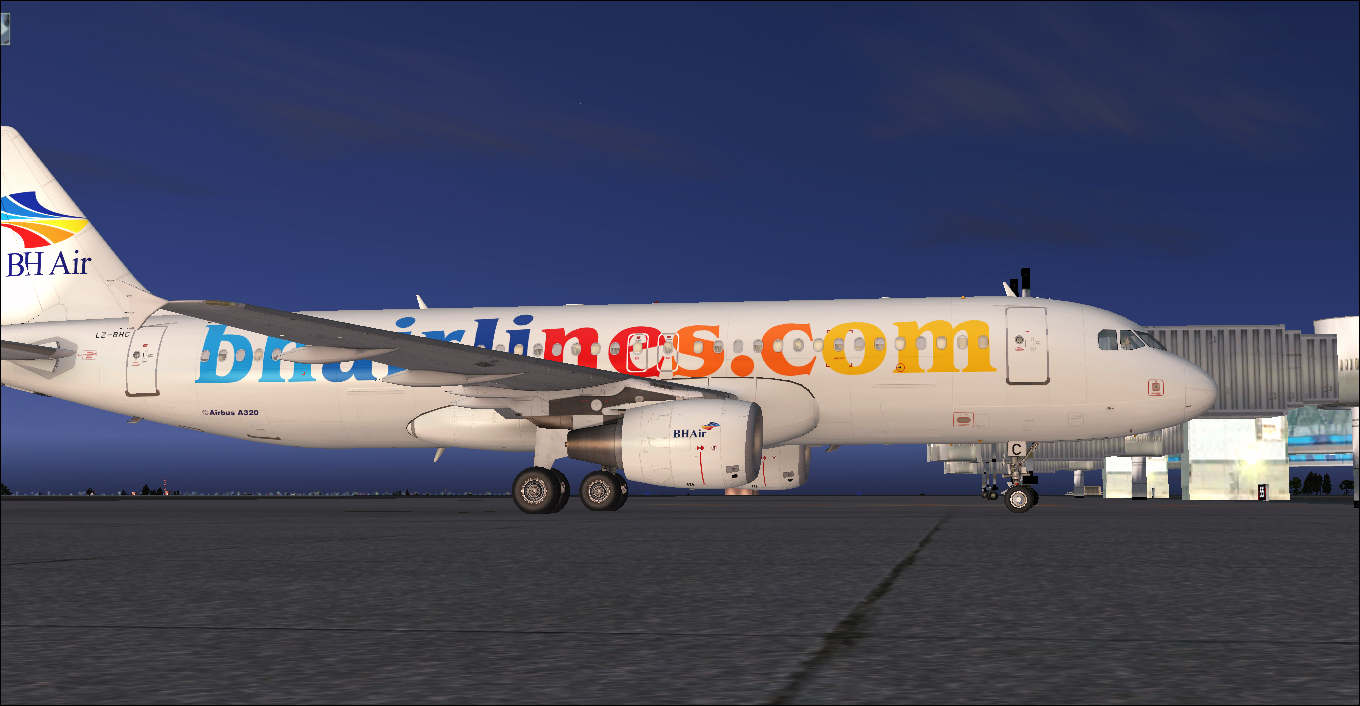
    Balkan Holidays BH Air Airbus A320-214 CFM livery painted for Airbus A320 IAE
     
    To install this aircraft manually, Copy the following text into your 'aircraft.cfg',  inside the folder 'SimObjects\Airplanes\Aerosoft Airbus X A320 Extended CFM'. Replace the Xx in
     
    [FLTSIM.XX] by the following number in your Aircrafts List
     
    This is for Aerosoft Airbus X Extended
     
    [fltsim.xx]  <<-- Replace 'xx' with the following Number
    title                    = Airbus A320 BH AIr LZ-BHC
    sim                    = A320
    model                    =
    panel                    =
    sound                    =
    texture                    = LZBHC
    kb_checklists                = AirbusA321_check
    kb_reference                = AirbusA321_ref
    atc_id                    = LZ-BHC
    atc_airline                = BALKAN HOLIDAYS
    atc_flight_number            =
    ui_manufacturer                = Airbus
    ui_type                    = A320-214 CFM
    ui_variation                = BH Air
    ui_typerole                = Commercial Airliner
    ui_createdby                = Aerosoft
    atc_parking_types            = GATE 
    description                = Airbus X Extended - A320 CFM Balkan Holidays BH AIr LZ-BHC by Captain Gunadeep
     
    This is for Airbus X v1.31 Users
     
    To install this aircraft manually, Copy the following text into your 'aircraft.cfg',  inside the folder 'SimObjects\Airplanes\Aerosoft Airbus X A320 CFM'. Replace the XX in [FLTSIM.XX] by the following number in your Aircrafts List
     
    [fltsim.xx]  <<-- Replace 'xx' with the following Number
    title                    = Airbus A320 BH Air LZ-BHC
    sim                    = A320
    model                    =
    panel                    =
    sound                    =
    texture                    = LZBHC
    kb_checklists                = AirbusA321_check
    kb_reference                = AirbusA321_ref
    atc_id                    = LZ-BHC
    atc_airline                = BALKAN HOLIDAYS
    atc_flight_number            =
    ui_manufacturer                = Airbus
    ui_type                    = A320-214 CFM
    ui_variation                = BH Air
    ui_typerole                = Commercial Airliner
    ui_createdby                = Aerosoft
    atc_parking_types            = GATE 
    description                = Airbus X - A320 CFM Balkan Holidays LZ-BHC by Captain Gunadeep
     
    for Airbus X V1.31 [users not the EXTENDED Model]

    Replace the texture.cfg file in this texture with the following Lines

    [fltsim]
    fallback.1=..\..\Aerosoft Airbus A320_A321 Base\Texture_Fallback_VC
    fallback.2=..\..\Aerosoft Airbus A320_A321 Base\Texture_FallBack_A320
    //fallback.2=..\..\Aerosoft Airbus A320_A321 Base\Texture_FallBack_A321
    fallback.3=..\..\..\..\Scenery\Global\texture
    fallback.4=..\..\..\..\..\..\Scenery\Global\texture
    and its done.
    • 354 Downloads
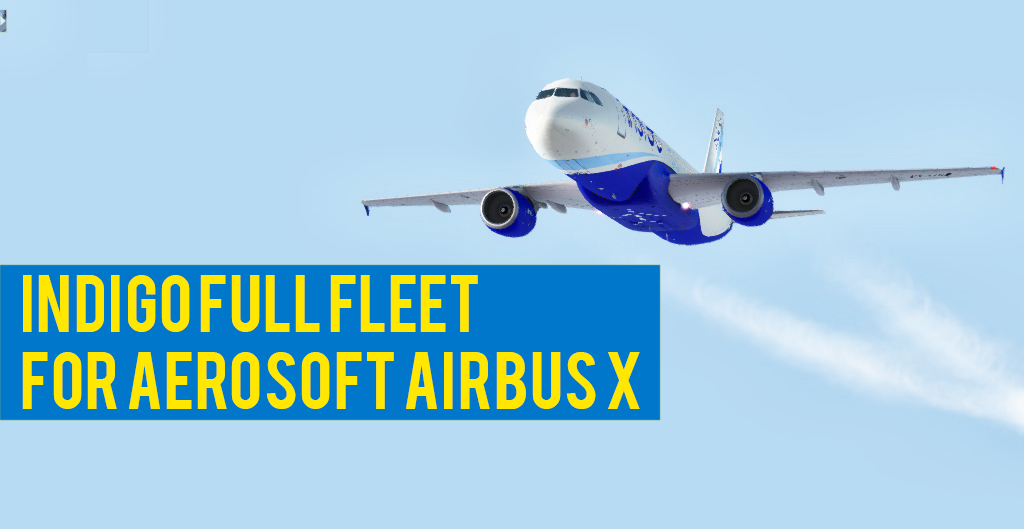
  7. As the maximum limit to upload a file here is exceeded. I uploaded the full IndiGo Airlines Airbus A320 Fleet in my own website. Download the 368mb file of full 130 liveries of IndiGo Airlines here.
    Total file size is 368mb. If you couldn't download full zip file. read below.
     
    If there is any problem related to download. Please Visit the link below to get the alternate download options of GOOGLE DRIVE and MEGA.NZ
     
    For Installation Instructions Visit this page here. 
     
    http://www.newxtrend.com/aviation/indigo-airlines-full-fleet-130-aircrafts-aerosoft-airbus-x/
    • 1020 Downloads
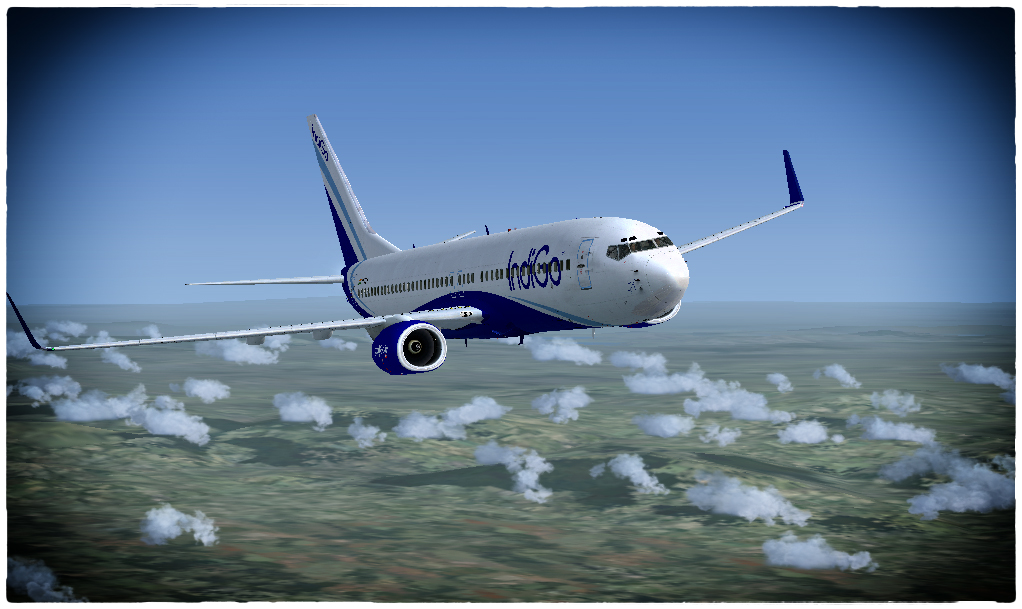
  8. Apologies for a PMDG Livery here. It's done on Request.
     
    IndiGo B737-800WL HD  Livery for PMDG 737 NGX
    To install this aircraft manually, Copy the following text into your 'aircraft.cfg',  inside the folder 'SimObjects\Airplanes\PMDG 737-800NGX WL'. Replace the XX in [FLTSIM.XX] by the following number in your Aircrafts List
    [fltsim.xx]  <<-- Replace 'xx' with the following Number
    title=Boeing 737-8Q8NGX IndiGo
    sim=B737-800WL
    model=
    panel=
    sound=
    texture=IndiGo_VT-FLY
    kb_checklists=Boeing737-800_check
    kb_reference=Boeing737-800_ref
    atc_airline=IndiGo
    atc_id=VT-FLY
    atc_flight_number=422
    atc_model=737-800
    atc_parking_types=GATE,RAMP
    atc_type=BOEING
    ui_createdby=PMDG
    ui_manufacturer=Boeing
    ui_type=737-800NGX
    ui_typerole=737-800
    ui_variation=IndiGo Winglets
    airline_name=IndiGo
    description=Boeing 737-800 powered by CFM engines v 1.0\nPMDG Simulations\nwww.precisionmanuals.com \n\nProduced under license from Boeing Management Company.\n\nBoeing 737, 737-800 & Boeing are among the trademarks owned by Boeing.
    visual_damage=0
    PMDG_Version=1 // **DO NOT EDIT THIS LINE - PMDG OPERATIONS CENTER USE ONLY**
    • 281 Downloads
    • 3 Comments
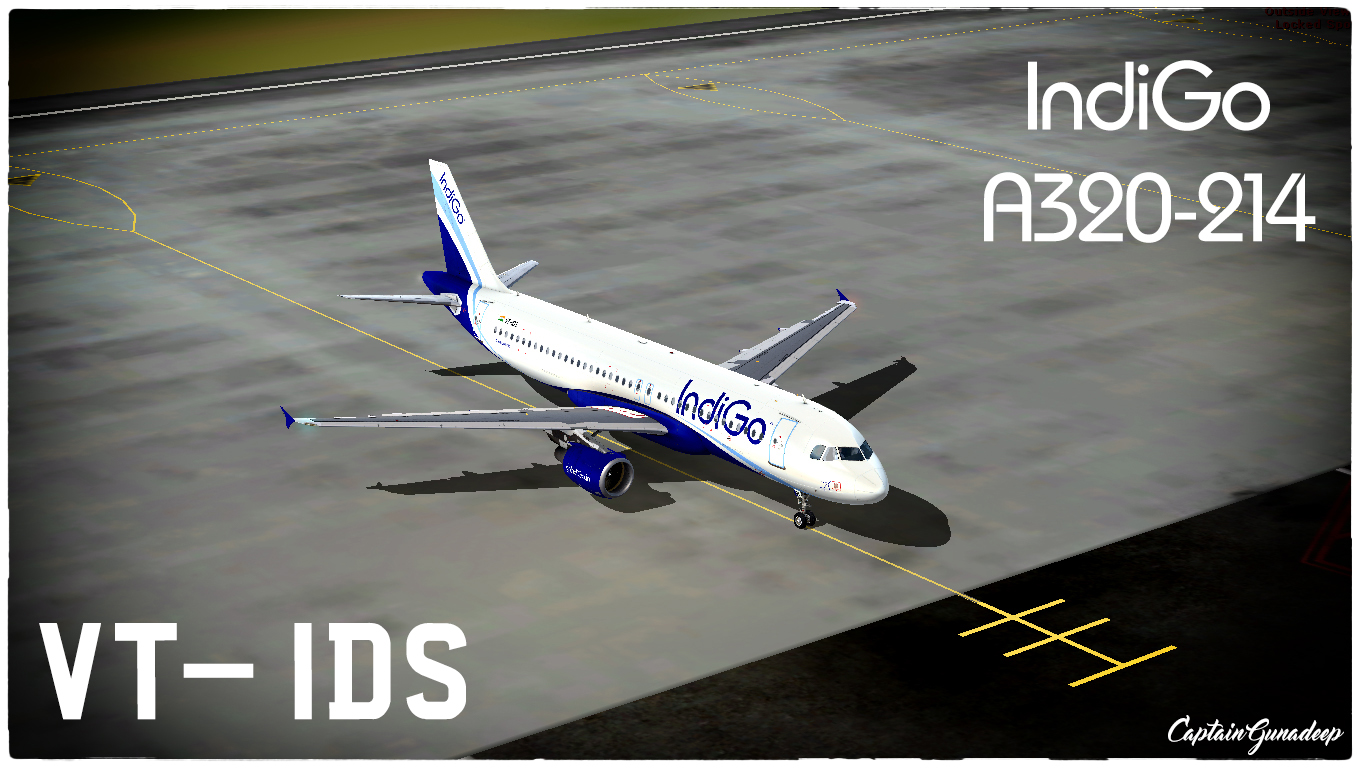
  9. IndiGo Airlines A320-214. VT-IDS first even CFM Equipped Aircraft of IndiGo's 100+ AIrcraft FleetTo install this aircraft manually, Copy the following text into your 'aircraft.cfg',  inside the folder 'SimObjects\Airplanes\Aerosoft Airbus X A320 Extended CFM'. Replace the Xx in [FLTSIM.XX] by the following number in your Aircrafts List
     
    [fltsim.xx]  <<-- Replace 'xx' with the following Number
    title                    = Airbus A320 CFM IndiGo VT-IDS
    sim                    = A320
    model                    =
    panel                    =
    sound                    =
    texture                    = IndiGo_VT-IDS
    kb_checklists                = AirbusA321_check
    kb_reference                = AirbusA321_ref
    atc_id                    = VT-IDS
    atc_airline                = IFLY
    atc_flight_number            =
    ui_manufacturer                = Airbus
    ui_type                    = A320-214 CFM
    ui_variation                = IndiGo
    ui_typerole                = Commercial Airliner
    ui_createdby                = Aerosoft
    atc_parking_types            = GATE 
    description                = Airbus X Extended - A320 CFM IndiGo VT-IDS by Captain Gunadeep
     
    for Airbus X
     
    To install this aircraft manually, Copy the following text into your 'aircraft.cfg',  inside the folder 'SimObjects\Airplanes\Aerosoft Airbus X A320 CFM'. Replace the XX in [FLTSIM.XX] by the following number in your Aircrafts List
     
    [fltsim.xx]  <<-- Replace 'xx' with the following Number
    title                    = Airbus A320 CFM IndiGo VT-IDS
    sim                    = A320
    model                    =
    panel                    =
    sound                    =
    texture                    = IndiGo_VT-IDS
    kb_checklists                = AirbusA321_check
    kb_reference                = AirbusA321_ref
    atc_id                    = VT-IDS
    atc_airline                = IFLY
    atc_flight_number            =
    ui_manufacturer                = Airbus
    ui_type                    = A320-214 CFM
    ui_variation                = IndiGo
    ui_typerole                = Commercial Airliner
    ui_createdby                = Aerosoft
    atc_parking_types            = GATE 
    description                = Airbus X Extended - A320 CFM IndiGo VT-IDS by Captain Gunadeep
     
    for Airbus X users not the EXTENDED Model
     
    Replace the texture.cfg file in this texture with the following Lines

    [fltsim]
    fallback.1=..\..\Aerosoft Airbus A320_A321 Base\Texture_Fallback_VC
    fallback.2=..\..\Aerosoft Airbus A320_A321 Base\Texture_FallBack_A320
    //fallback.2=..\..\Aerosoft Airbus A320_A321 Base\Texture_FallBack_A321
    fallback.3=..\..\..\..\Scenery\Global\texture
    fallback.4=..\..\..\..\..\..\Scenery\Global\texture
     
    and its done.
    • 1084 Downloads
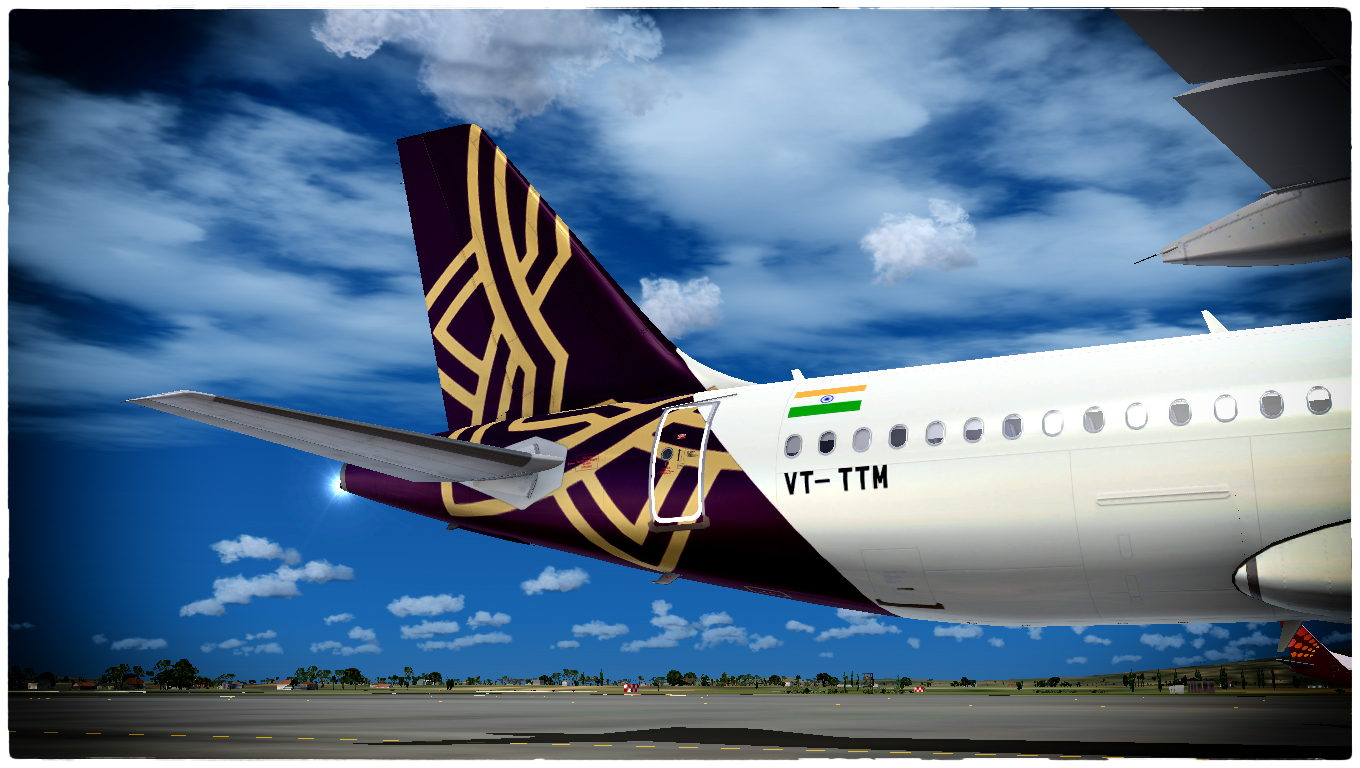
  10. Vistara Airlines A320 Premier Carrier of India. a Joint Venture of Tata & Singapore Airlines has a new aircraft in fleet VT-TTM.
    This contains both Normal and Test Registration textures to give a feel of Brand New Aircraft
     
    To install this aircraft manually, Copy the following text into your 'aircraft.cfg',  inside the folder 'SimObjects\Airplanes\Aerosoft Airbus X A320 Extended IAE NEO'. Replace the Xx in [FLTSIM.XX] by the following number in your Aircrafts List
     
    [fltsim.xx]  <<-- Replace 'xx' with the following Number
    title                    = Airbus A320 NEO Vistara VT-TTM
    sim                    = A320S
    model                    =
    panel                    =
    sound                    =
    texture                    = Vistara_VT-TTM
    kb_checklists                = AirbusA321_check
    kb_reference                = AirbusA321_ref
    atc_id                    = VT-TTM
    atc_airline                = Vistara
    atc_flight_number            =
    ui_manufacturer                = Airbus
    ui_type                    = A320-232 IAE Sharklets
    ui_variation                = Vistara
    ui_typerole                = Commercial Airliner
    ui_createdby                = Aerosoft
    atc_parking_types            = GATE 
    description                = Airbus X Extended - A320 IAE NEO By Captain Gunadeep
     
    for Airbus X
     
    To install this aircraft manually, Copy the following text into your 'aircraft.cfg',  inside the folder 'SimObjects\Airplanes\Aerosoft Airbus X A320 IAE NEO'. Replace the XX in [FLTSIM.XX] by the following number in your Aircrafts List
     
    [fltsim.xx]  <<-- Replace 'xx' with the following Number
    title                    = Airbus A320 NEO Vistara VT-TTM
    sim                    = A320
    model                    = SHARKLET
    panel                    =
    sound                    =
    texture                    = Vistara_VT-TTM
    kb_checklists                = AirbusA321_check
    kb_reference                = AirbusA321_ref
    atc_id                    = VT-TTM
    atc_airline                = Vistara
    atc_flight_number            =
    ui_manufacturer                = Airbus
    ui_type                    = A320-232 IAE Sharklets
    ui_variation                = Vistara
    ui_typerole                = Commercial Airliner
    ui_createdby                = Aerosoft
    atc_parking_types            = GATE 
    description                = Airbus X Extended - A320 IAE NEO By Captain Gunadeep
    for Airbus X users not the EXTENDED Model
    Replace the texture.cfg file in this texture with the following Lines

    [fltsim]
    fallback.1=..\..\Aerosoft Airbus A320_A321 Base\Texture_Fallback_VC
    fallback.2=..\..\Aerosoft Airbus A320_A321 Base\Texture_FallBack_A320
    //fallback.2=..\..\Aerosoft Airbus A320_A321 Base\Texture_FallBack_A321
    fallback.3=..\..\..\..\Scenery\Global\texture
    fallback.4=..\..\..\..\..\..\Scenery\Global\texture
    and its done.
    • 673 Downloads
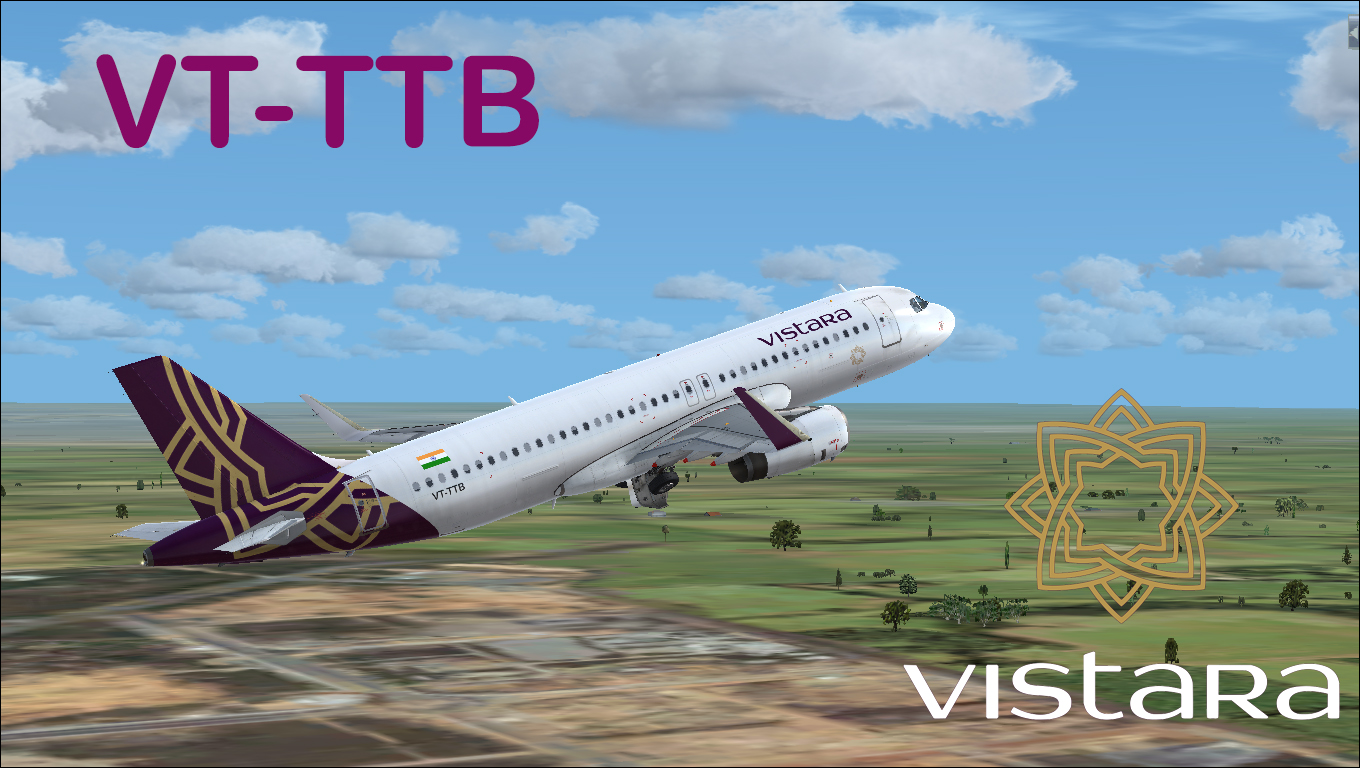
  11. Vistara Airlines the Youngest Airline of India.
    Enjoy the HD Repaint of the newest Airline of Inida and this repaint is the Very first aircraft of its fleet
     
    To install this aircraft manually, Copy the following text into your 'aircraft.cfg',  inside the folder 'SimObjects\Airplanes\Aerosoft Airbus X A320 Extended IAE NEO'. Replace the XX in [FLTSIM.XX] by the following number in your Aircrafts List
     
    for Airbus X Extended
     
    [fltsim.XX]  <<-- Replace 'xx' with the following Number
    title                    = Airbus A320 Vistara VT-TTB
    sim                    = A320S
    model                    =
    panel                    =
    sound                    =
    texture                    = Vistara_VT-TTB
    kb_checklists                = AirbusA321_check
    kb_reference                = AirbusA321_ref
    atc_id                    = VT-TTB
    atc_airline                = Vistara
    atc_flight_number            =
    ui_manufacturer                = Airbus
    ui_type                    = A320-232 IAE Sharklets
    ui_variation                = Vistara
    ui_typerole                = Commercial Airliner
    ui_createdby                = Aerosoft
    atc_parking_types            = GATE 
    description                = Airbus X Extended - A320 IAE Vistara By Captain Gunadeep
     
    for Airbus X
    To install this aircraft manually, Copy the following text into your 'aircraft.cfg',  inside the folder 'SimObjects\Airplanes\Aerosoft Airbus X A320 IAE'. Replace the XX in [FLTSIM.XX] by the following number in your Aircrafts List

    [fltsim.xx]  <<-- Replace 'xx' with the following Number
    title                    = Airbus A320 Vistara VT-TTB
    sim                    = A320
    model                    = SHARKLET
    panel                    =
    sound                    =
    texture                    = Vistara_VT-TTB
    kb_checklists                = AirbusA321_check
    kb_reference                = AirbusA321_ref
    atc_id                    = VT-TTB
    atc_airline                = Vistara
    atc_flight_number            =
    ui_manufacturer                = Airbus
    ui_type                    = A320-232 IAE Sharklets
    ui_variation                = Vistara
    ui_typerole                = Commercial Airliner
    ui_createdby                = Aerosoft
    atc_parking_types            = GATE 
    description                = Airbus X Extended - A320 IAE Vistara By Captain Gunadeep

     
    for Airbus X users not the EXTENDED Model
    Replace the texture.cfg file in this texture with the following Lines

    [fltsim]
    fallback.1=..\..\Aerosoft Airbus A320_A321 Base\Texture_Fallback_VC
    fallback.2=..\..\Aerosoft Airbus A320_A321 Base\Texture_FallBack_A320
    //fallback.2=..\..\Aerosoft Airbus A320_A321 Base\Texture_FallBack_A321
    fallback.3=..\..\..\..\Scenery\Global\texture
    fallback.4=..\..\..\..\..\..\Scenery\Global\texture
    and its done.
    • 1472 Downloads
    • 10 Comments
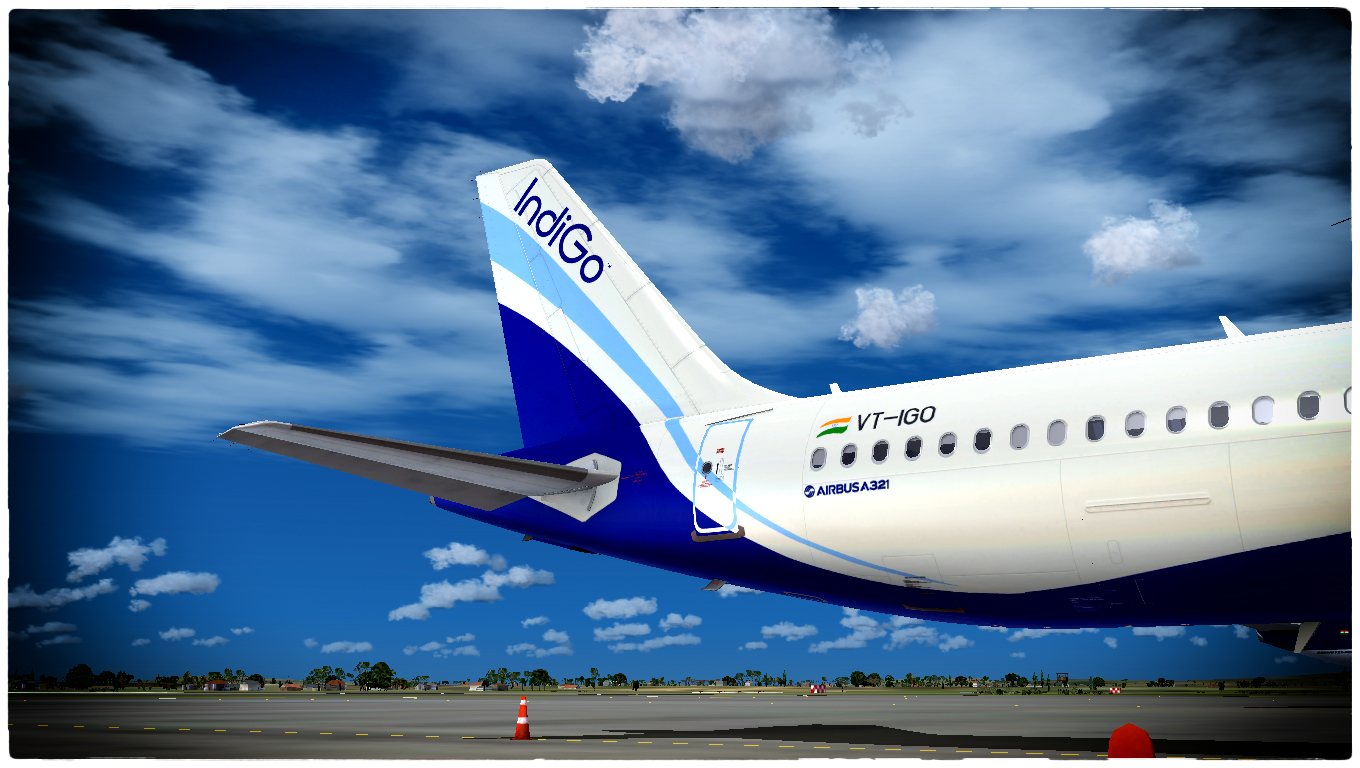
  12. IndiGo Airlines A321 Fictional Livery. IndiGo the biggest airline of India by Market Share has ordered A321neos so this could be the look of new IndiGo A321.
    To install this aircraft manually, Copy the following text into your 'aircraft.cfg',  inside the folder 'SimObjects\Airplanes\Aerosoft Airbus X A321 Extended IAE'. Replace the Xx in [FLTSIM.XX] by the following number in your Aircrafts List
    [fltsim.xx]  <<-- Replace 'xx' with the following Number
    title                    = Airbus A321 IndiGo VT-IGO
    sim                    = A321
    model                    =
    panel                    =
    sound                    =
    texture                    = IFLY-VAin
    kb_checklists                = AirbusA321_check
    kb_reference                = AirbusA321_ref
    atc_id                    = VT-IGO
    atc_airline                = IFLY
    atc_flight_number            =
    ui_manufacturer                = Airbus
    ui_type                    = A321-231 IAE
    ui_variation                = IndiGo
    ui_typerole                = Commercial Airliner
    ui_createdby                = Aerosoft
    atc_parking_types            = GATE 
    description                = Airbus X Extended - A321/ IndiGo A321Repaint by Captain Gunadeep.
    for Airbus X
    To install this aircraft manually, Copy the following text into your 'aircraft.cfg',  inside the folder 'SimObjects\Airplanes\Aerosoft Airbus X A321 IAE'. Replace the XX in [FLTSIM.XX] by the following number in your Aircrafts List
    [fltsim.xx]  <<-- Replace 'xx' with the following Number
    title                    = Airbus A321 IndiGo VT-IGO
    sim                    = A321
    model                    =
    panel                    =
    sound                    =
    texture                    = IFLY-VAin
    kb_checklists                = AirbusA321_check
    kb_reference                = AirbusA321_ref
    atc_id                    = VT-IGO
    atc_airline                = IFLY
    atc_flight_number            =
    ui_manufacturer                = Airbus
    ui_type                    = A321-231 IAE
    ui_variation                = IndiGo
    ui_typerole                = Commercial Airliner
    ui_createdby                = Aerosoft
    atc_parking_types            = GATE 
    description                = Airbus X Extended - A321 IAE / IndiGo A321Repaint by Captain Gunadeep.
    for Airbus X users not the EXTENDED Model
    Replace the texture.cfg file in this texture with the following Lines

    [fltsim]
    fallback.1=..\..\Aerosoft Airbus A320_A321 Base\Texture_Fallback_VC
    fallback.2=..\..\Aerosoft Airbus A320_A321 Base\Texture_FallBack_A320
    //fallback.2=..\..\Aerosoft Airbus A320_A321 Base\Texture_FallBack_A321
    fallback.3=..\..\..\..\Scenery\Global\texture
    fallback.4=..\..\..\..\..\..\Scenery\Global\texture
    and its done.
    • 563 Downloads
  13. AirAsia India VT-APJ Aircraft painted in special KABALI film for Promotions of the India's SuperStar RAJINIKANTH
     
    To install this aircraft manually, Copy the following text into your 'aircraft.cfg',  inside the folder 'SimObjects\Airplanes\Aerosoft Airbus X A320 Extended CFM'. Replace the Xx in
     
    [FLTSIM.XX] by the following number in your Aircrafts List
     
    [fltsim.xx]  <<-- Replace 'xx' with the following Number
    title                    = Airbus A320 CFM AirAsia VT-APJ 'KABALI'
    sim                    = A320
    model                    =
    panel                    =
    sound                    =
    texture                    = AirAsia_VT-APJ
    kb_checklists                = AirbusA321_check
    kb_reference                = AirbusA321_ref
    atc_id                    = VT-APJ
    atc_airline                = ARIYA
    atc_flight_number            = 
    ui_manufacturer                = Airbus
    ui_type                    = A320-214 CFM
    ui_variation                = AirAsia VT-APJ
    ui_typerole                = Commercial Airliner
    ui_createdby                = Aerosoft
    atc_parking_types            = GATE  
    description                = Airbus X Extended - A320 CFM / AirAsia VT-APJ by Captain Gunadeep
     
    for Airbus X
     
    To install this aircraft manually, Copy the following text into your 'aircraft.cfg',  inside the folder 'SimObjects\Airplanes\Aerosoft Airbus X A320 CFM'. Replace the XX in [FLTSIM.XX] by the following number in your Aircrafts List
     
    [fltsim.xx]  <<-- Replace 'xx' with the following Number
    title                    = Airbus A320 CFM AirAsia VT-APJ 'KABALI'
    sim                    = A320
    model                    =
    panel                    =
    sound                    =
    texture                    = AirAsia_VT-APJ
    kb_checklists                = AirbusA321_check
    kb_reference                = AirbusA321_ref
    atc_id                    = VT-APJ
    atc_airline                = ARIYA
    atc_flight_number            = 
    ui_manufacturer                = Airbus
    ui_type                    = A320-214 CFM
    ui_variation                = AirAsia VT-APJ
    ui_typerole                = Commercial Airliner
    ui_createdby                = Aerosoft
    atc_parking_types            = GATE  
    description                = Airbus X Extended - A320 CFM / AirAsia VT-APJ by Captain Gunadeep
     
    for Airbus X users not the EXTENDED Model
     
    Replace the texture.cfg file in this texture with the following Lines

    [fltsim]
    fallback.1=..\..\Aerosoft Airbus A320_A321 Base\Texture_Fallback_VC
    fallback.2=..\..\Aerosoft Airbus A320_A321 Base\Texture_FallBack_A320
    //fallback.2=..\..\Aerosoft Airbus A320_A321 Base\Texture_FallBack_A321
    fallback.3=..\..\..\..\Scenery\Global\texture
    fallback.4=..\..\..\..\..\..\Scenery\Global\texture
    and its done.
    • 595 Downloads
    • 2 Comments
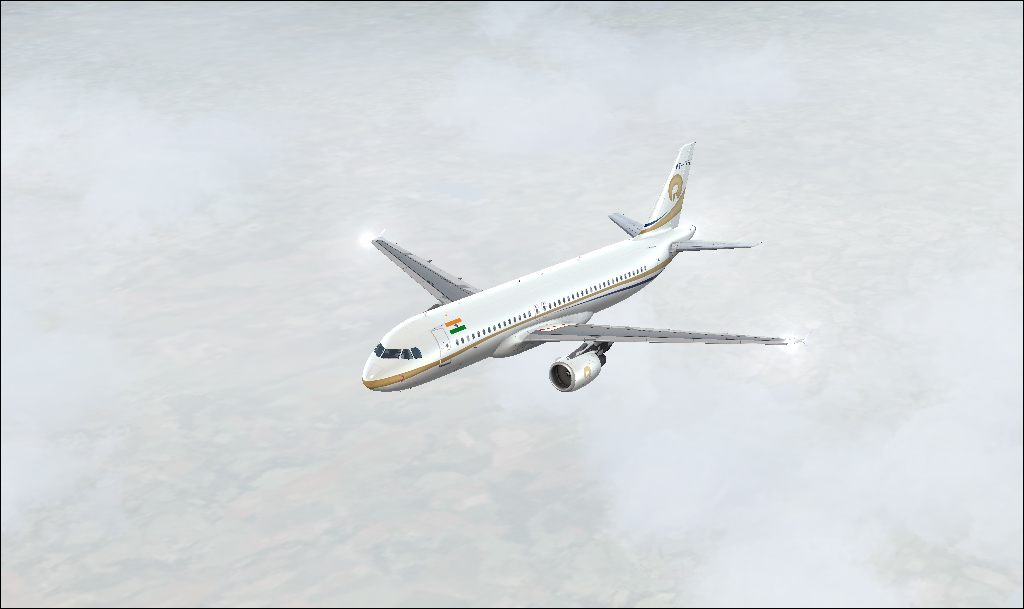
  14. Reliance Industries. Private Business of the Business Tycoon of India Mr. Mukesh Ambani's Flying Palace The Airbus A319 ACJ Registered VT-IAH
     
    To install this aircraft manually, Copy the following text into your 'aircraft.cfg',  inside the folder 'SimObjects\Airplanes\Aerosoft Airbus X A320 Extended CFM'. Replace the Xx in [FLTSIM.XX] by the following number in your Aircrafts List
     
    [fltsim.xx]  <<-- Replace 'xx' with the following Number
    title                    = Airbus A320 Reliance A319-115(CJ) VT-IAH
    sim                    = A320
    model                    =
    panel                    =
    sound                    =
    texture                    = Reliance_VT-IAH
    kb_checklists                = AirbusA321_check
    kb_reference                = AirbusA321_ref
    atc_id                    = VT-IAH
    atc_airline                = Reliance
    atc_flight_number            =
    ui_manufacturer                = Airbus
    ui_type                    = A320-211 CFM
    ui_variation                = Reliance
    ui_typerole                = Commercial Airliner
    ui_createdby                = Aerosoft
    atc_parking_types            = GATE 
    description                = Airbus X Extended - A320 CFM Reliance A319-115 (CJ) VT-IAH by Captain Gunadeep
     
    for Airbus X
     
    To install this aircraft manually, Copy the following text into your 'aircraft.cfg',  inside the folder 'SimObjects\Airplanes\Aerosoft Airbus X A320 CFM'. Replace the XX in [FLTSIM.XX] by the following number in your Aircrafts List
     
    [fltsim.xx]  <<-- Replace 'xx' with the following Number
    title                    = Airbus A320 Reliance A319-115(CJ) VT-IAH
    sim                    = A320
    model                    =
    panel                    =
    sound                    =
    texture                    = Reliance_VT-IAH
    kb_checklists                = AirbusA321_check
    kb_reference                = AirbusA321_ref
    atc_id                    = VT-IAH
    atc_airline                = Reliance
    atc_flight_number            =
    ui_manufacturer                = Airbus
    ui_type                    = A320-211 CFM
    ui_variation                = Reliance
    ui_typerole                = Commercial Airliner
    ui_createdby                = Aerosoft
    atc_parking_types            = GATE 
    description                = Airbus X Extended - A320 CFM Reliance A319-115 (CJ) VT-IAH by Captain Gunadeep
     
    for Airbus X users not the EXTENDED Model
     
    Replace the texture.cfg file in this texture with the following Lines

    [fltsim]
    fallback.1=..\..\Aerosoft Airbus A320_A321 Base\Texture_Fallback_VC
    fallback.2=..\..\Aerosoft Airbus A320_A321 Base\Texture_FallBack_A320
    //fallback.2=..\..\Aerosoft Airbus A320_A321 Base\Texture_FallBack_A321
    fallback.3=..\..\..\..\Scenery\Global\texture
    fallback.4=..\..\..\..\..\..\Scenery\Global\texture
    and its done.
    • 186 Downloads
  15. The Unpainted Bare Metal Livery of The IndiGo Airbus A320-232 IAE livery painted for Airbus A320 IAE NEO
     
    To install this aircraft manually, Copy the following text into your 'aircraft.cfg',  inside the folder 'SimObjects\Airplanes\Aerosoft Airbus X A320 Extended IAE NEO'. Replace the Xx in
    [FLTSIM.XX] by the following number in your Aircrafts List
     
    [fltsim.xx]  <<-- Replace 'xx' with the following Number
    title                    = Airbus A320 NEO IndiGo VT-IAO
    sim                    = A320S
    model                    = 
    panel                    =
    sound                    =
    texture                    = IndiGo_VTIAO
    kb_checklists                = 
    kb_reference                = 
    atc_id                    = VT-IAO
    atc_airline                = IFLY
    atc_flight_number            =
    ui_manufacturer                = Airbus
    ui_type                    = A320-232 IAE
    ui_variation                = IndiGo Airlines
    ui_typerole                = Commercial Airliner
    ui_createdby                = Aerosoft
    atc_parking_types            = GATE, RAMP 
    atc_parking_codes               = IGO 
    description                = Airbus A320 - 232 IAE Extended IndiGo VT-IAO by Captain Gunadeep
     
    for Airbus X
     
    To install this aircraft manually, Copy the following text into your 'aircraft.cfg',  inside the folder 'SimObjects\Airplanes\Aerosoft Airbus X A320 IAE'. Replace the XX in [FLTSIM.XX] by the following number in your Aircrafts List
     
    [fltsim.xx]  <<-- Replace 'xx' with the following Number
    title                    = Airbus A320 NEO IndiGo VT-IAO
    sim                    = A320
    model                    = SDHARKLET
    panel                    =
    sound                    =
    texture                    = IndiGo_VTIAO
    kb_checklists                = 
    kb_reference                = 
    atc_id                    = VT-IAO
    atc_airline                = IFLY
    atc_flight_number            =
    ui_manufacturer                = Airbus
    ui_type                    = A320-232 IAE
    ui_variation                = IndiGo Airlines
    ui_typerole                = Commercial Airliner
    ui_createdby                = Aerosoft
    atc_parking_types            = GATE, RAMP 
    atc_parking_codes               = IGO 
    description                = Airbus A320 - 232 IAE / IndiGo VT-IAO by Captain Gunadeep
     
    for Airbus X users not the EXTENDED Model
     
    Replace the texture.cfg file in this texture with the following Lines

    [fltsim]
    fallback.1=..\..\Aerosoft Airbus A320_A321 Base\Texture_Fallback_VC
    fallback.2=..\..\Aerosoft Airbus A320_A321 Base\Texture_FallBack_A320
    //fallback.2=..\..\Aerosoft Airbus A320_A321 Base\Texture_FallBack_A321
    fallback.3=..\..\..\..\Scenery\Global\texture
    fallback.4=..\..\..\..\..\..\Scenery\Global\texture
    and its done.
    • 261 Downloads
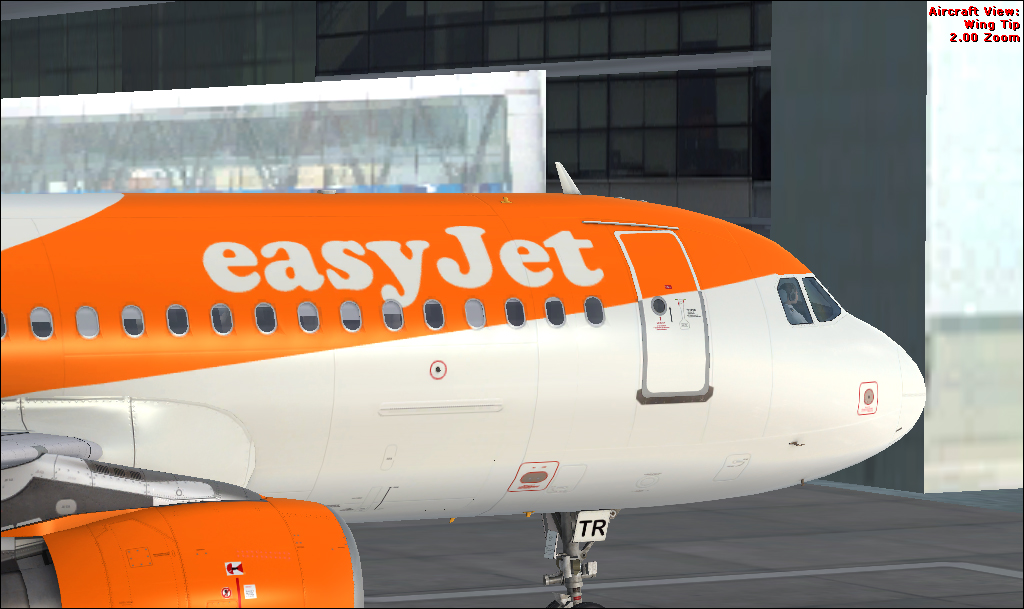
  16. EasyJet Airbus G-EZTR A320-214 CFM livery painted for Airbus A320 IAE
     
    To install this aircraft manually, Copy the following text into your 'aircraft.cfg',  inside the folder 'SimObjects\Airplanes\Aerosoft Airbus X A320 Extended CFM'. Replace the Xx in
     
    [FLTSIM.XX] by the following number in your Aircrafts List
     
    [fltsim.xx]  <<-- Replace 'xx' with the following Number
    title                    = Airbus A320 EasyJet G-EZTR
    sim                    = A320
    model                    =
    panel                    =
    sound                    =
    texture                    = Easyjet_G-EZTR
    kb_checklists                = AirbusA321_check
    kb_reference                = AirbusA321_ref
    atc_id                    = G-EZTR
    atc_airline                = Iberia
    atc_flight_number            =
    ui_manufacturer                = Airbus
    ui_type                    = A320-214 CFM
    ui_variation                = Easyjet
    ui_typerole                = Commercial Airliner
    ui_createdby                = Aerosoft
    atc_parking_types            = GATE 
    description                = Airbus X Extended - A320 CFM Easyjet G-EZTR by Captain Gunadeep
     
    for Airbus X
     
    To install this aircraft manually, Copy the following text into your 'aircraft.cfg',  inside the folder 'SimObjects\Airplanes\Aerosoft Airbus X A320 CFM'. Replace the XX in [FLTSIM.XX] by the following number in your Aircrafts List
     
    [fltsim.xx]  <<-- Replace 'xx' with the following Number
    title                    = Airbus A320 EasyJet G-EZTR
    sim                    = A320
    model                    =
    panel                    =
    sound                    =
    texture                    = Easyjet_G-EZTR
    kb_checklists                = AirbusA321_check
    kb_reference                = AirbusA321_ref
    atc_id                    = G-EZTR
    atc_airline                = Iberia
    atc_flight_number            =
    ui_manufacturer                = Airbus
    ui_type                    = A320-214 CFM
    ui_variation                = Easyjet
    ui_typerole                = Commercial Airliner
    ui_createdby                = Aerosoft
    atc_parking_types            = GATE 
    description                = Airbus X Extended - A320 CFM Easyjet G-EZTR by Captain Gunadeep
     
    for Airbus X users not the EXTENDED Model
     
    Replace the texture.cfg file in this texture with the following Lines

    [fltsim]
    fallback.1=..\..\Aerosoft Airbus A320_A321 Base\Texture_Fallback_VC
    fallback.2=..\..\Aerosoft Airbus A320_A321 Base\Texture_FallBack_A320
    //fallback.2=..\..\Aerosoft Airbus A320_A321 Base\Texture_FallBack_A321
    fallback.3=..\..\..\..\Scenery\Global\texture
    fallback.4=..\..\..\..\..\..\Scenery\Global\texture
    and its done.
    • 10683 Downloads
    • 22 Comments
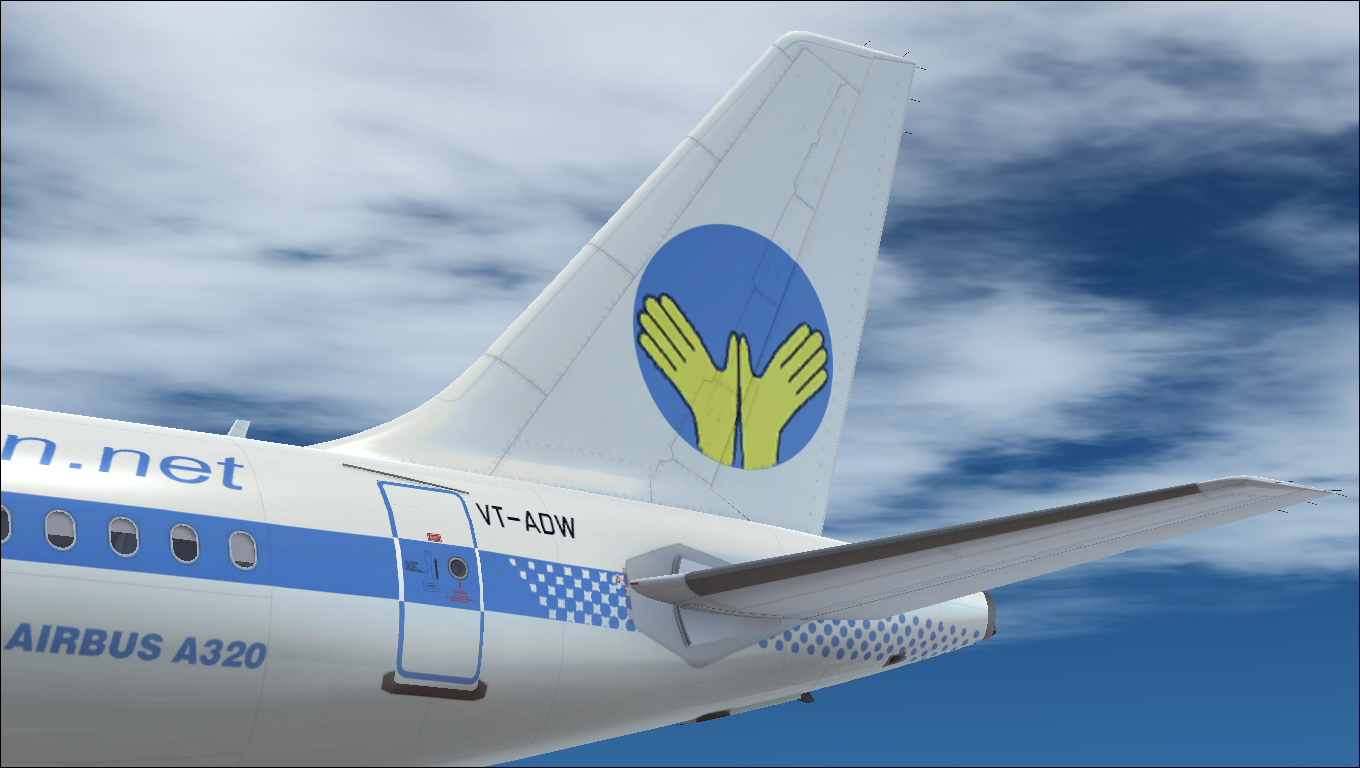
  17. Air Deccan Airbus A320-232 IAE livery painted for Airbus A320 IAE
     
    To install this aircraft manually, Copy the following text into your 'aircraft.cfg',  inside the folder 'SimObjects\Airplanes\Aerosoft Airbus X A320 Extended IAE'. Replace the Xx in [FLTSIM.XX] by the following number in your Aircrafts List
     
    [fltsim.xx]  <<-- Replace 'xx' with the following Number
    title                    = Airbus A320 Air Deccan VT-ADW
    sim                    = A320
    model                    =
    panel                    =
    sound                    =
    texture                    = AirDeccan_VT-ADW
    kb_checklists                = AirbusA321_check
    kb_reference                = AirbusA321_ref
    atc_id                    = VT-ADW
    atc_airline                = AIR DECCAN
    atc_flight_number            =
    ui_manufacturer                = Airbus
    ui_type                    = A320-232 IAE
    ui_variation                = Air Deccan
    ui_typerole                = Commercial Airliner
    ui_createdby                = Aerosoft
    atc_parking_types            = GATE 
    description                = Airbus X Extended - A320 IAE Air Deccan VT-ADW by Captain Gunadeep
     
    for Airbus X
     
    To install this aircraft manually, Copy the following text into your 'aircraft.cfg',  inside the folder 'SimObjects\Airplanes\Aerosoft Airbus X A320 IAE'. Replace the XX in [FLTSIM.XX] by the following number in your Aircrafts List
     
    [fltsim.xx]  <<-- Replace 'xx' with the following Number
    title                    = Airbus A320 Air Deccan VT-ADW
    sim                    = A320
    model                    =
    panel                    =
    sound                    =
    texture                    = AirDeccan_VT-ADW
    kb_checklists                = AirbusA321_check
    kb_reference                = AirbusA321_ref
    atc_id                    = VT-ADW
    atc_airline                = AIR DECCAN
    atc_flight_number            =
    ui_manufacturer                = Airbus
    ui_type                    = A320-232 IAE
    ui_variation                = Air Deccan
    ui_typerole                = Commercial Airliner
    ui_createdby                = Aerosoft
    atc_parking_types            = GATE 
    description                = Airbus X Extended - A320 IAE Air Deccan VT-ADW by Captain Gunadeep
    for Airbus X users not the EXTENDED Model
    Replace the texture.cfg file in this texture with the following Lines

    [fltsim]
    fallback.1=..\..\Aerosoft Airbus A320_A321 Base\Texture_Fallback_VC
    fallback.2=..\..\Aerosoft Airbus A320_A321 Base\Texture_FallBack_A320
    //fallback.2=..\..\Aerosoft Airbus A320_A321 Base\Texture_FallBack_A321
    fallback.3=..\..\..\..\Scenery\Global\texture
    fallback.4=..\..\..\..\..\..\Scenery\Global\texture
    and its done.
    • 150 Downloads
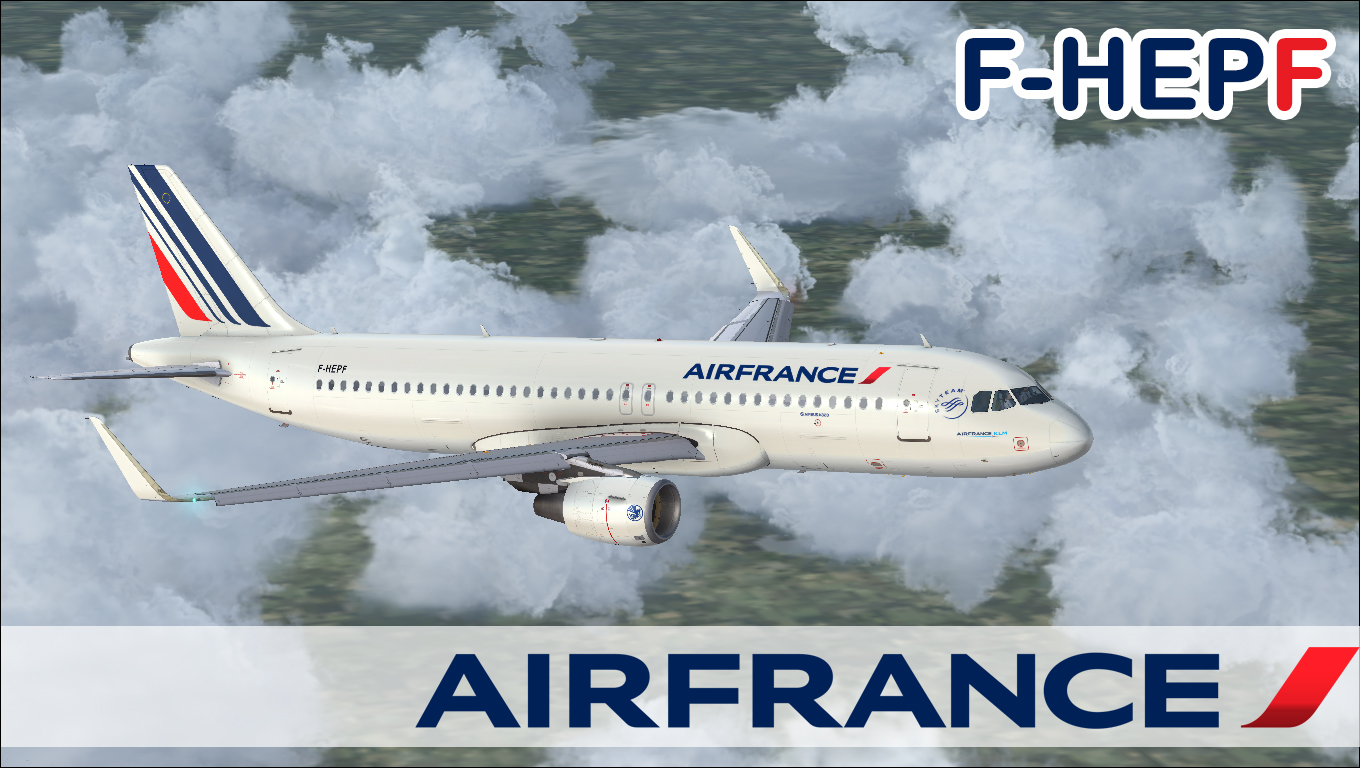
  18. Air France Airbus A320-214SL livery painted on A320 CFM neo
     
    To install this aircraft manually, Copy the following text into your 'aircraft.cfg',  inside the folder 'SimObjects\Airplanes\Aerosoft Airbus X A320 Extended CFM NEO'. Replace the Xx in [FLTSIM.XX] by the following number in your Aircrafts List
     
    [fltsim.xx]  <<-- Replace 'xx' with the following Number
    title                    = Airbus A320 NEO Air France F-HEPF
    sim                    = A320S
    model                    =
    panel                    =
    sound                    =
    texture                    = AirFrance_F-HEPF
    kb_checklists                = AirbusA321_check
    kb_reference                = AirbusA321_ref
    atc_id                    = F-HEPF
    atc_airline                = AIR FRANCE
    atc_flight_number            =
    ui_manufacturer                = Airbus
    ui_type                    = A320-214 CFM Sharklets
    ui_variation                = Air France
    ui_typerole                = Commercial Airliner
    ui_createdby                = Aerosoft
    atc_parking_types            = GATE 
    description                = Airbus X Extended - A320 CFM NEO Air France F-HEPF New Livery by Air France
     
    for Airbus X
     
    To install this aircraft manually, Copy the following text into your 'aircraft.cfg',  inside the folder 'SimObjects\Airplanes\Aerosoft Airbus X A320 CFM'. Replace the XX in [FLTSIM.XX] by the following number in your Aircrafts List
     
    [fltsim.xx]  <<-- Replace 'xx' with the following Number
    title                    = Airbus A320 NEO Air France F-HEPF
    sim                    = A320
    model                    = SHARKLET
    panel                    =
    sound                    =
    texture                    = AirFrance_F-HEPF
    kb_checklists                = AirbusA321_check
    kb_reference                = AirbusA321_ref
    atc_id                    = F-HEPF
    atc_airline                = AIR FRANCE
    atc_flight_number            =
    ui_manufacturer                = Airbus
    ui_type                    = A320-214 CFM Sharklets
    ui_variation                = Air France
    ui_typerole                = Commercial Airliner
    ui_createdby                = Aerosoft
    atc_parking_types            = GATE 
    description                = Airbus X Extended - A320 CFM NEO Air France F-HEPF New Livery by Air France
    for Airbus X users not the EXTENDED Model
    Replace the texture.cfg file in this texture with the following Lines

    [fltsim]
    fallback.1=..\..\Aerosoft Airbus A320_A321 Base\Texture_Fallback_VC
    fallback.2=..\..\Aerosoft Airbus A320_A321 Base\Texture_FallBack_A320
    //fallback.2=..\..\Aerosoft Airbus A320_A321 Base\Texture_FallBack_A321
    fallback.3=..\..\..\..\Scenery\Global\texture
    fallback.4=..\..\..\..\..\..\Scenery\Global\texture
    and its done.
    • 4524 Downloads
    • 1 Comments
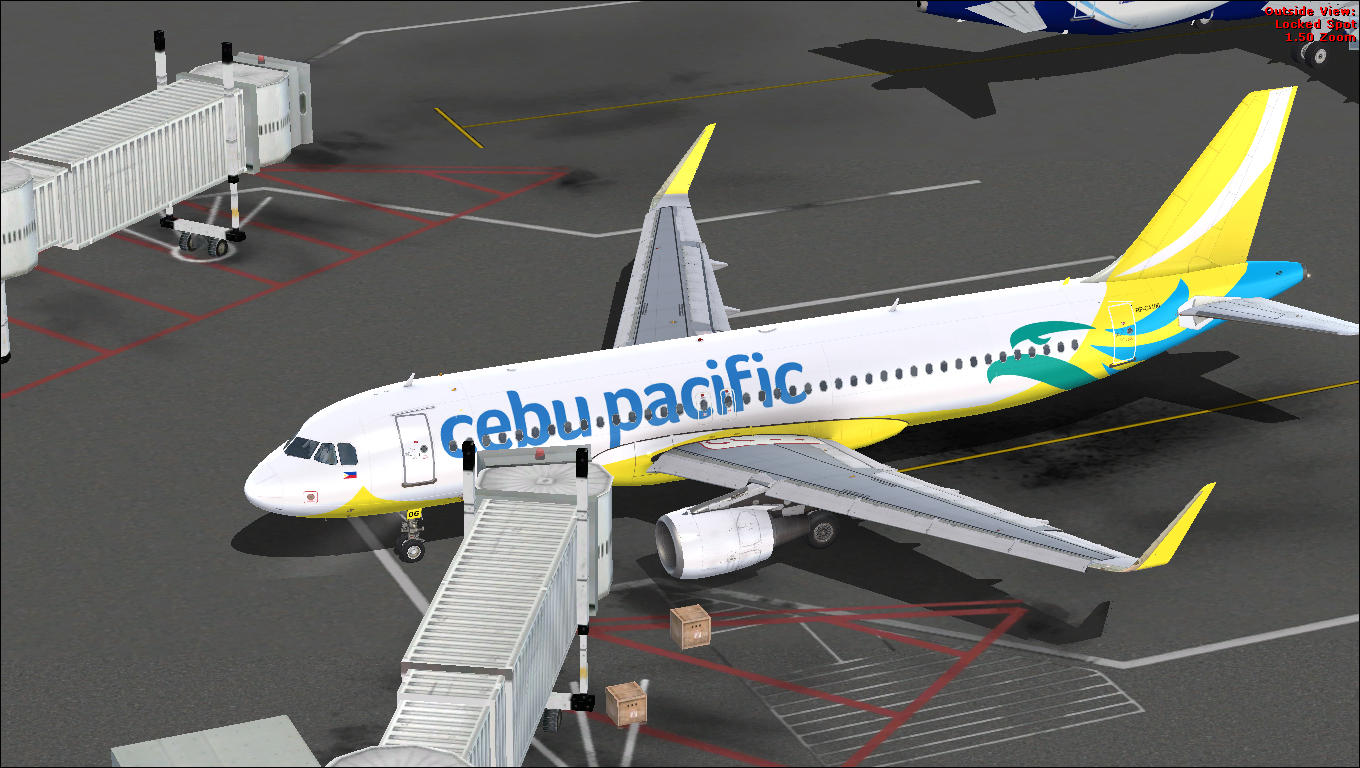
  19. Cebu Pacific Airlines New HD Livery for Airbus X Extended
     
    For those people who are using the A320/A321 Package (not the extended)
     
    Use this instead.
     
    [fltsim.XX]  
    title                    = Airbus A320 Cebu Pacific RPC4106
    sim                    = A320
    model                    = SHARKLET
    panel                    =
    sound                    = 
    texture                    = CebuPacific_RP-C4106
    kb_checklists                = AirbusA321_check
    kb_reference                = AirbusA321_ref
    atc_id                    = RP-C4106
    atc_airline                = Cebu Pacific
    atc_flight_number            =
    ui_manufacturer                = Airbus
    ui_type                    = A320-214 CFM Sharklets
    ui_variation                = Cebu Pacific
    ui_typerole                = Commercial Airliner
    ui_createdby                = Aerosoft
    atc_parking_types            = GATE 
    description                = Airbus X Extended - A320 CFM / Cebu Pacific Sharklets RP-C4106 by Captain Gunadeep


    and inside the "Texture.CebuPacific_RP-C4106" folder you'll find TEXTURE.cfg
    please change it to 
     
     
    [fltsim]
    fallback.1=..\..\Aerosoft Airbus A320_A321 Base\Texture_Fallback_VC 
    fallback.2=..\..\Aerosoft Airbus A320_A321 Base\Texture_FallBack_A320 
    fallback.3=..\..\..\..\Scenery\Global\texture 
    fallback.4=..\..\..\..\..\..\Scenery\Global\texture
    • 3399 Downloads
    • 8 Comments
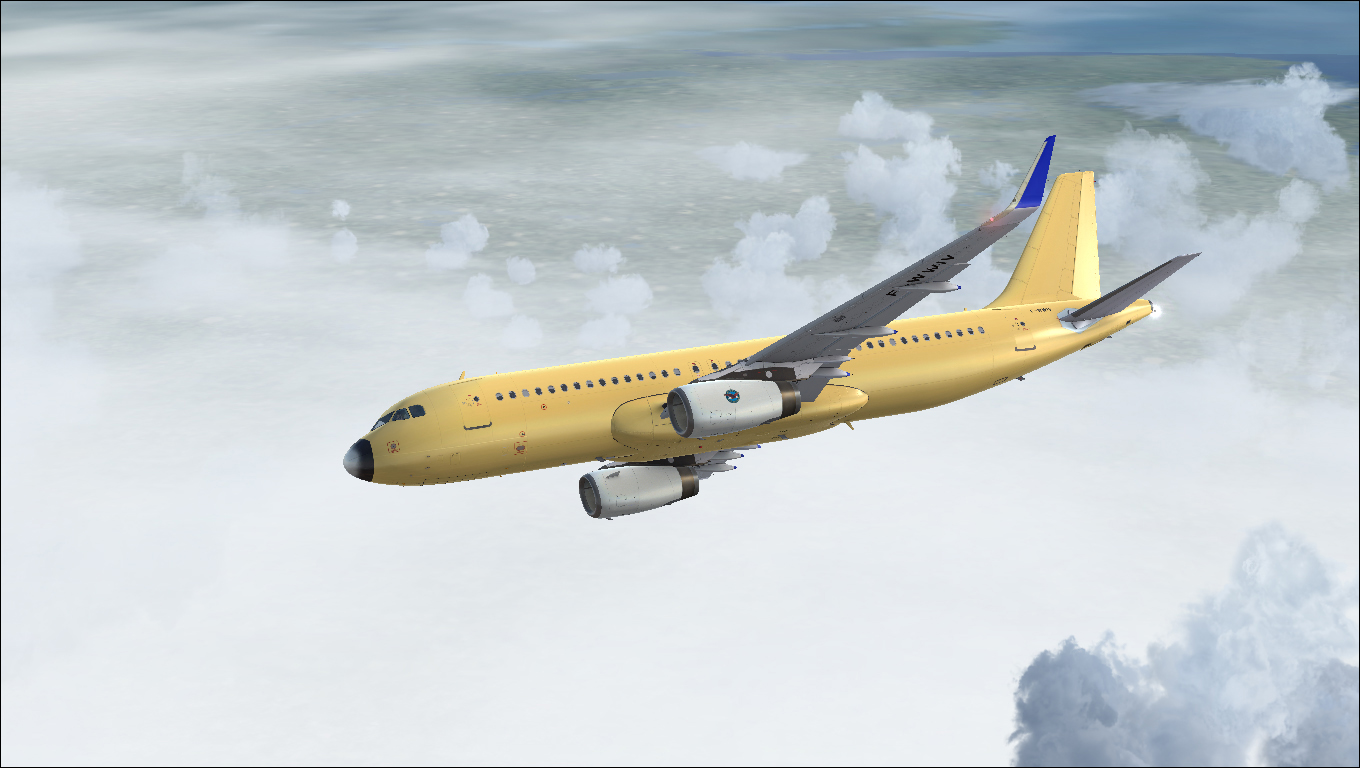
  20. IndiGo Airlines Airbus A320neo with incomplete livery on VT-ITB painted on A320 IAE neo
    To install this aircraft manually, Copy the following text into your 'aircraft.cfg',  inside the folder 'SimObjects\Airplanes\Aerosoft Airbus X A320 Extended IAE NEO'. Replace the Xx in
     
    [FLTSIM.XX] by the following number in your Aircrafts List
     
    [fltsim.xx]  <<-- Replace 'xx' with the following Number
    title                    = Airbus A320 NEO IndiGo VT-ITB
    sim                    = A320S
    model                    = 
    panel                    =
    sound                    =
    texture                    = IndiGo_VT-ITB
    kb_checklists                = 
    kb_reference                = 
    atc_id                    = VT-ITB
    atc_airline                = IFLY
    atc_flight_number            =
    ui_manufacturer                = Airbus
    ui_type                    = A320-232 IAE
    ui_variation                = IndiGo Airlines
    ui_typerole                = Commercial Airliner
    ui_createdby                = Aerosoft
    atc_parking_types            = GATE, RAMP 
    atc_parking_codes               = IGO 
    description                = Airbus A320 - 232 IAE / IndiGo VT-ITB by Captain Gunadeep
     
    for Airbus X
     
    To install this aircraft manually, Copy the following text into your 'aircraft.cfg',  inside the folder 'SimObjects\Airplanes\Aerosoft Airbus X A320 IAE'. Replace the XX in [FLTSIM.XX] by the following number in your Aircrafts List
     
    [fltsim.xx]  <<-- Replace 'xx' with the following Number
    title                    = Airbus A320 NEO IndiGo VT-ITB
    sim                    = A320
    model                    = SHARKLET
    panel                    =
    sound                    =
    texture                    = IndiGo_VT-ITB
    kb_checklists                = 
    kb_reference                = 
    atc_id                    = VT-ITB
    atc_airline                = IFLY
    atc_flight_number            =
    ui_manufacturer                = Airbus
    ui_type                    = A320-232 IAE
    ui_variation                = IndiGo Airlines
    ui_typerole                = Commercial Airliner
    ui_createdby                = Aerosoft
    atc_parking_types            = GATE, RAMP 
    atc_parking_codes               = IGO 
    description                = Airbus A320 - 232 IAE / IndiGo VT-ITB by Captain Gunadeep
     
    for Airbus X users not the EXTENDED Model
     
    Replace the texture.cfg file in this texture with the following Lines
     
     
    [fltsim]
    fallback.1=..\..\Aerosoft Airbus A320_A321 Base\Texture_Fallback_VC
    fallback.2=..\..\Aerosoft Airbus A320_A321 Base\Texture_FallBack_A320
    //fallback.2=..\..\Aerosoft Airbus A320_A321 Base\Texture_FallBack_A321
    fallback.3=..\..\..\..\Scenery\Global\texture
    fallback.4=..\..\..\..\..\..\Scenery\Global\texture
     
    and its done.
    • 139 Downloads
    • 1 Comments
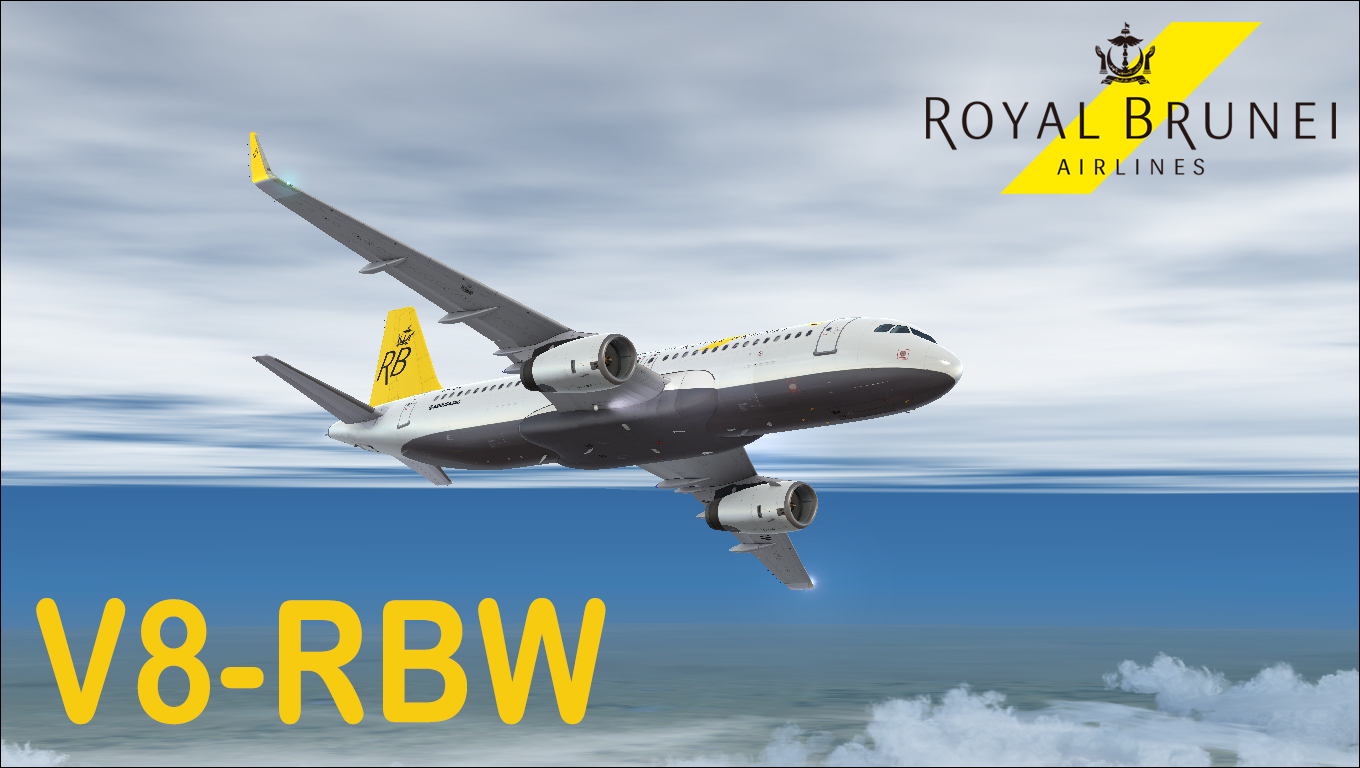
  21. Royal Brunei Airlines Airbus A320 with incomplete livery on V8-RBW painted on A320 IAE neo
     
    To install this aircraft manually, Copy the following text into your 'aircraft.cfg',  inside the folder 'SimObjects\Airplanes\Aerosoft Airbus X A320 Extended IAE NEO'. Replace the Xx in
     
    [FLTSIM.XX] by the following number in your Aircrafts List
     
    [fltsim.xx]  <<-- Replace 'xx' with the following Number
    title                    = Airbus A320 NEO Royal Brunei V8-RBW
    sim                    = A320S
    model                    = 
    panel                    =
    sound                    =
    texture                    = RoyalBrunei_V8-RBW
    kb_checklists                = 
    kb_reference                = 
    atc_id                    = v8-RBW
    atc_airline                = Brunei
    atc_flight_number            =
    ui_manufacturer                = Airbus
    ui_type                    = A320-232 IAE
    ui_variation                = Royal Brunei
    ui_typerole                = Commercial Airliner
    ui_createdby                = Aerosoft
    atc_parking_types            = GATE, RAMP 
    atc_parking_codes               = RBA
    description                = Airbus A320 - 232 IAE Royal Brunei V8-RBW by Captain Gunadeep
     
    for Airbus X
     
    To install this aircraft manually, Copy the following text into your 'aircraft.cfg',  inside the folder 'SimObjects\Airplanes\Aerosoft Airbus X A320 IAE'. Replace the XX in [FLTSIM.XX] by the following number in your Aircrafts List
     
    [fltsim.xx]  <<-- Replace 'xx' with the following Number
    title                    = Airbus A320 NEO Royal Brunei V8-RBW
    sim                    = A320
    model                    = SHARKLET
    panel                    =
    sound                    =
    texture                    = RoyalBrunei_V8-RBW
    kb_checklists                = 
    kb_reference                = 
    atc_id                    = v8-RBW
    atc_airline                = Brunei
    atc_flight_number            =
    ui_manufacturer                = Airbus
    ui_type                    = A320-232 IAE
    ui_variation                = Royal Brunei
    ui_typerole                = Commercial Airliner
    ui_createdby                = Aerosoft
    atc_parking_types            = GATE, RAMP 
    atc_parking_codes               = RBA
    description                = Airbus A320 - 232 IAE Royal Brunei V8-RBW by Captain Gunadeep
     
    for Airbus X users not the EXTENDED Model
     
    Replace the texture.cfg file in this texture with the following Lines

    [fltsim]
    fallback.1=..\..\Aerosoft Airbus A320_A321 Base\Texture_Fallback_VC
    fallback.2=..\..\Aerosoft Airbus A320_A321 Base\Texture_FallBack_A320
    //fallback.2=..\..\Aerosoft Airbus A320_A321 Base\Texture_FallBack_A321
    fallback.3=..\..\..\..\Scenery\Global\texture
    fallback.4=..\..\..\..\..\..\Scenery\Global\texture
     
    and its done.
    • 917 Downloads
    • 4 Comments
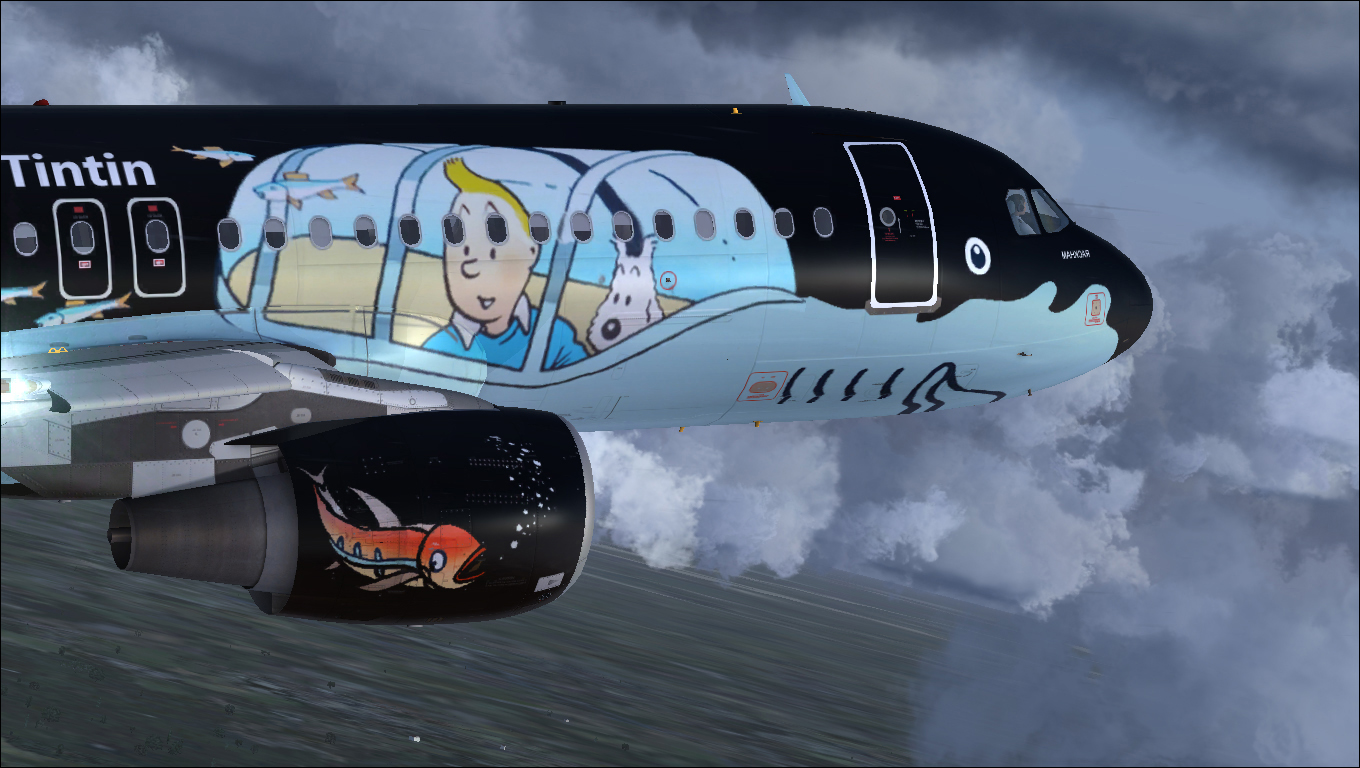
  22. Brussels Airlines A320 CFM Tintin Livery OO-SNB Livery
     
    brussels airlines ~ we take you too the home of Tintin Livery
     
    To install this aircraft manually, Copy the following text into your 'aircraft.cfg',  inside the folder 'SimObjects\Airplanes\Aerosoft Airbus X A320 Extended CFM'. Replace the Xx in
     
    [FLTSIM.XX] by the following number in your Aircrafts List
     
    [fltsim.xx]  <<-- Replace 'xx' with the following Number
    title                    = Airbus A320-216 Brussels Airlines Tintin Livery
    sim                    = A320
    model                    =
    panel                    =
    sound                    =
    texture                    = Brussels_OO-SNB
    kb_checklists                = AirbusA321_check
    kb_reference                = AirbusA321_ref
    atc_id                    = OO-SNB
    atc_airline                = BRUSSELS
    atc_flight_number            =
    ui_manufacturer                = Airbus
    ui_type                    = A320-214 CFM
    ui_variation                = Brussels
    ui_typerole                = Commercial Airliner
    ui_createdby                = Aerosoft
    atc_parking_types            = GATE 
    description                = Airbus X Extended - A320 CFM Brussels Airlines OO-SNB by Captain Gunadeep
     
    for Airbus X
     
    To install this aircraft manually, Copy the following text into your 'aircraft.cfg',  inside the folder 'SimObjects\Airplanes\Aerosoft Airbus X A320 CFM'. Replace the XX in [FLTSIM.XX] by the following number in your Aircrafts List
     
    [fltsim.xx]  <<-- Replace 'xx' with the following Number
    title                    = Airbus A320-216 Brussels Airlines Tintin Livery
    sim                    = A320
    model                    =
    panel                    =
    sound                    =
    texture                    = Brussels_OO-SNB
    kb_checklists                = AirbusA321_check
    kb_reference                = AirbusA321_ref
    atc_id                    = OO-SNB
    atc_airline                = BRUSSELS
    atc_flight_number            =
    ui_manufacturer                = Airbus
    ui_type                    = A320-214 CFM
    ui_variation                = Brussels
    ui_typerole                = Commercial Airliner
    ui_createdby                = Aerosoft
    atc_parking_types            = GATE 
    description                = Airbus X - A320 CFM Brussels Airlines OO-SNB by Captain Gunadeep
     
    for Airbus X users not the EXTENDED Model
     
    Replace the texture.cfg file in this texture with the following Lines

    [fltsim]
    fallback.1=..\..\Aerosoft Airbus A320_A321 Base\Texture_Fallback_VC
    fallback.2=..\..\Aerosoft Airbus A320_A321 Base\Texture_FallBack_A320
    //fallback.2=..\..\Aerosoft Airbus A320_A321 Base\Texture_FallBack_A321
    fallback.3=..\..\..\..\Scenery\Global\texture
    fallback.4=..\..\..\..\..\..\Scenery\Global\texture
    and its done.
    • 2547 Downloads
    • 7 Comments
  23. Indian Airlines A319 CFM Aircraft is still active and used the same livery now
     
    Its now clear and corrected Tail Textures. 
    • 457 Downloads
    • 1 Comments
  24. This is the Indian Airlines Old Livery of VT-PPA Aircraft which is now changed to the Standard Air India Livery
    • 312 Downloads
  25. Indian Airlines A320-232 IAE VT-ESJ. The Airline which is now emerged into Air India Currently Uses this Livery on A319's and this was once used on their A320 Fleet too later changed to Air India Colors.
    • 347 Downloads

Important Information

We have placed cookies on your device to help make this website better. You can adjust your cookie settings, otherwise we'll assume you're okay to continue. Privacy Policy & Terms of Use

Account

Navigation

Search

Search

Configure browser push notifications

Chrome (Android)
  1. Tap the lock icon next to the address bar.
  2. Tap Permissions → Notifications.
  3. Adjust your preference.
Chrome (Desktop)
  1. Click the padlock icon in the address bar.
  2. Select Site settings.
  3. Find Notifications and adjust your preference.