
Skip to content

bikerg

Members
  • Joined

  • Last visited

Files posted by bikerg

  1. Sim:  X-Plane 11
    OS: Windows 10 & 11
     
    This is absolutely one of my favorite aircrafts right alongside the Beech Premier 1A that's in my hangar. I hope to post that aircraft profile when I am certain it is complete. This file will do the following (Read the "What's New" update details down below this original content).
     
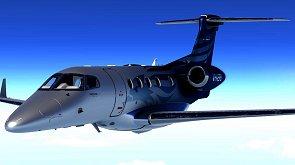
    LED configuration for the annunciator panel for my Aerobask Phenom 300. I did things a little differently. The LED lights will come on if the criteria isn't met for that particular function (such as oil pressure psi). If the oil pressure is less than what I determined it should be at the lowest setting (i.e., idle speed), the light will illuminate. Same goes for the hydraulic pressure and voltage.
     
    Anti-Ice will illuminate if any of the ice protection is activated, such as wing or engine protection, etc.
     
    Landing gear LEDs are working.
     
    Of course you can set other LEDs that I may not have set up but these are the ones I considered important to me. I did not set up the LEDs for Engine Fire at this time but I will soon. Master Caution and Master Warning covered too many functions to make those work so I did not configure them to work.
     
    Other Functionalities:
    Due to the aircraft's three position switch for the taxi and landing lights, I could not replicate the Bravo's two position switches to mimic the three position switch so I turn them on within the aircraft as needed. Here is my switch assignment for those switches that can be assigned (from left to right);
    1. Not used, 2. Not used, 3. Nav lights, 4. Not used (Beacon light turns on automatically), 5. Strobe, 6. Speed brake, 7. Emergency light
     
    My lever layout is as follows from left to right; 1. Not used, 2. Not used, 3. Left throttle, 4. Right throttle, 5. Not used, 6. Flaps
    NOTE: The white flap handle on the right side of the Bravo is used as follows: Toggle UP= set or release parking brake, Toggle down= not used but might affect flaps
     
    Try my profile and give me feed back if you have any other ideas. Hope you find this useful.
    • 499 Downloads
    • 3 Comments
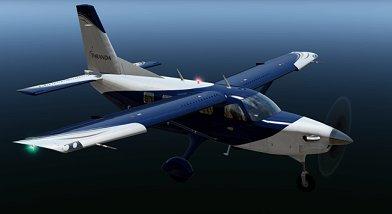
  2. I just started getting into flying this aircraft more now than I have in the past. I really enjoy this aircraft so here is my Bravo profile for those that fly this beauty. 
     
    Here are my 7 switch configurations (from left to right);
     
    1. Landing lights, 2. Taxi lights, 3. Nav light, 4. Beacon light, 5. Strobe light, 6. Left Pitot, 7. Right Pitot
     
    The extreme right white "Flaps" lever is only used for parking brake when you toggle it up (up to brake and up to release). The down position is not used.
     
    The right lever (position 6) is used for flaps.
     
    If you use the standard two engine throttle levers that came with the bravo, the left engine lever with the red TOGO button is now used for reverse thrust (for both engines) on this aircraft. I was surprised to get it to work rather than using a keystroke to perform the same function.
     
    Many of the annunciator lights work including APU, Doors (any open door), oil pressure and others.
     
    Landing gear position lights work as expected.
     
    The autopilot may work as expected but I use another third party autopilot instead so it's possible some of the AP functions may not work.
     
    Hope this helps you. Enjoy
    • 77 Downloads
    • 2 Comments
  3. I have to be honest; this was another livery but I decided to modify it to look like a US Coast Guard aircraft. Gave me some practice to use my graphics skill and see what I can do. Here are my results. If you don't like it, toss it out.
     
    Unzip the file to a temporary location and then add this newly created livery folder to your existing Dornier 328-110 main liveries folder.
     
    You should be good to go! 
     
    Any comments are appreciated.
    • 25 Downloads
  4. For X-Plane 11
    OS: Windows 10
     
    This configuration file configures the LEDs on the annunciator panel, the 7 toggle switches and engine controls. This file does NOT configure the autopilot function or its LEDs. 
     
    Switch layout is as follows from left to right;
    1. Landing lights, 2. Taxi lights, 3. Nav lights, 4. Beacon, 5. Strobe lights, 6. Left Pitot, 7. Right Pitot
     
    The white flap lever on the right side of the Bravo is used for parking brake by toggling up to set and/or release.
     
    Engine system is as follows using the levers from left to right: Position 1. throttle (torque), 2. Not used, 3. Prop, 4. Mixture, 5. Not used, 6. Flaps
     
    NOTE: The DataRefTool was a great help in determining what datarefs were needed for the LED lights. If you don’t have this tool, get it!
     
    Hope this helps. 
     
     
    • 245 Downloads

Important Information

We have placed cookies on your device to help make this website better. You can adjust your cookie settings, otherwise we'll assume you're okay to continue. Privacy Policy & Terms of Use

Account

Navigation

Search

Search

Configure browser push notifications

Chrome (Android)
  1. Tap the lock icon next to the address bar.
  2. Tap Permissions → Notifications.
  3. Adjust your preference.
Chrome (Desktop)
  1. Click the padlock icon in the address bar.
  2. Select Site settings.
  3. Find Notifications and adjust your preference.