
-
Support for scanning MSFS2024 scenery via navdatareader
When using navdatareader-DB in stead of MakeRunways-files, helipads will be visualized as well. However as they have no name/number (hence the interior being a big "H") the tool-tip will only include radius and GPS.
-
Support for scanning MSFS2024 scenery via navdatareader
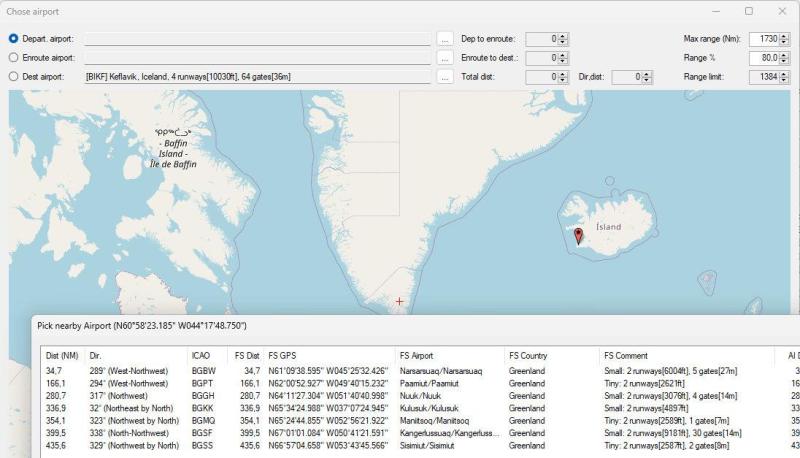
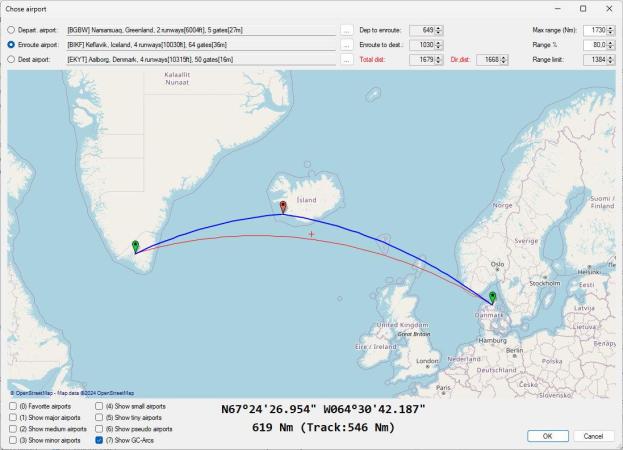
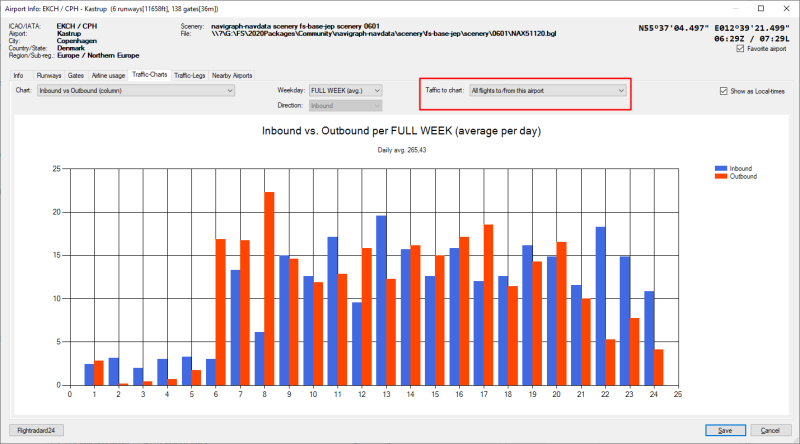
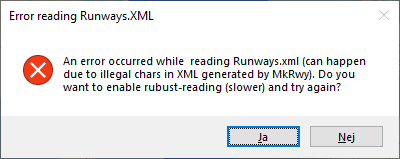
As I wrote as a reply to a previous post, I am currently working on support for MSFS2024 scenery-scan via navdatareader (made by Alexander Barthel - the developer of Little NavMap). The reason for this is because MakeRunways (by Peter Dowson) was only able to scan scenery via BGL-files, which are no longer in use for MSFS2024), hence Flightplan Viewer was not able to show the gates matching your active scenery for MSFS2024. I am currently working on having Flightplan Visualizer import the database generated by navdatareader, and I still have a few changes to do, and things to check. But hope I will be able to release a new version within a month or so. To use this new feature you will have to run navdatareader (while MSFS2024 is running, as it extract scenery-date via SimConnect). Basically you "should" run navdatareader whenever you have updated your scenery (e.g. installed a new airport) - just like you in the past "should" run MakeRunways each time you had made changes to your scenery. FlightPlan Visualizer will still default to be using the MakeRunways files you have made yourself, or those bundled with the installer. However in settings you can in the following version specify a path to where you have a database generated by navdatareader. If this database is specified the navdatareader-db will take priority over the MakeRunways-files. There will be a few benefits using the navdatareader-DB over the MakeRunways-files. First of all it can scan your installed MSFS2025 scenery, but it can also scan scenery purchased via the Markedplace within MSFS (MakeRunways couldn't do this, as this scenery was encrypted). MakeRunways didn't fully support unicode, so I had to put in extra code trying to catch when it did something "bad" to the airport-names, which is not an issue with navdatareader. Also as visible in the screen-shot below, hoovering the mouse over a gate, the tooltip will show if a jetway is associated with the gate.
-
Feedback & Experience with Flightplan Visualizer
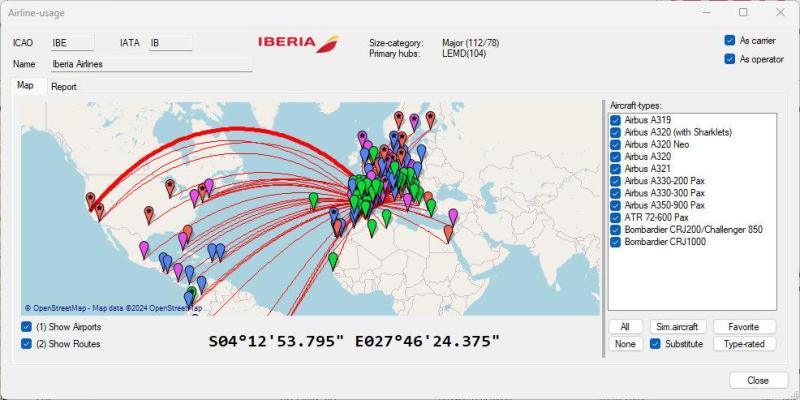
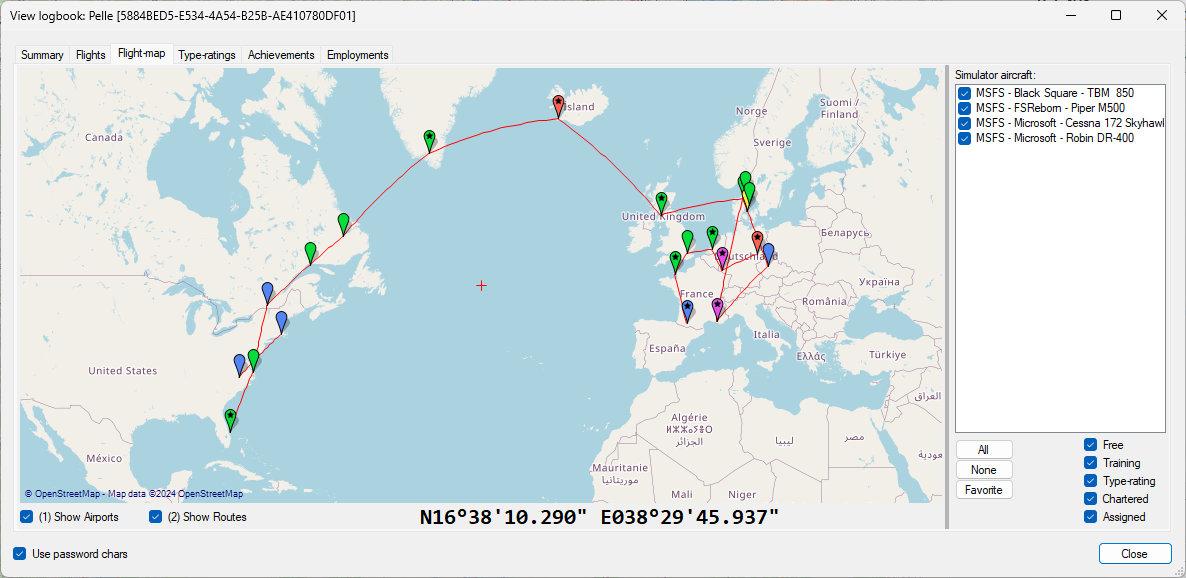
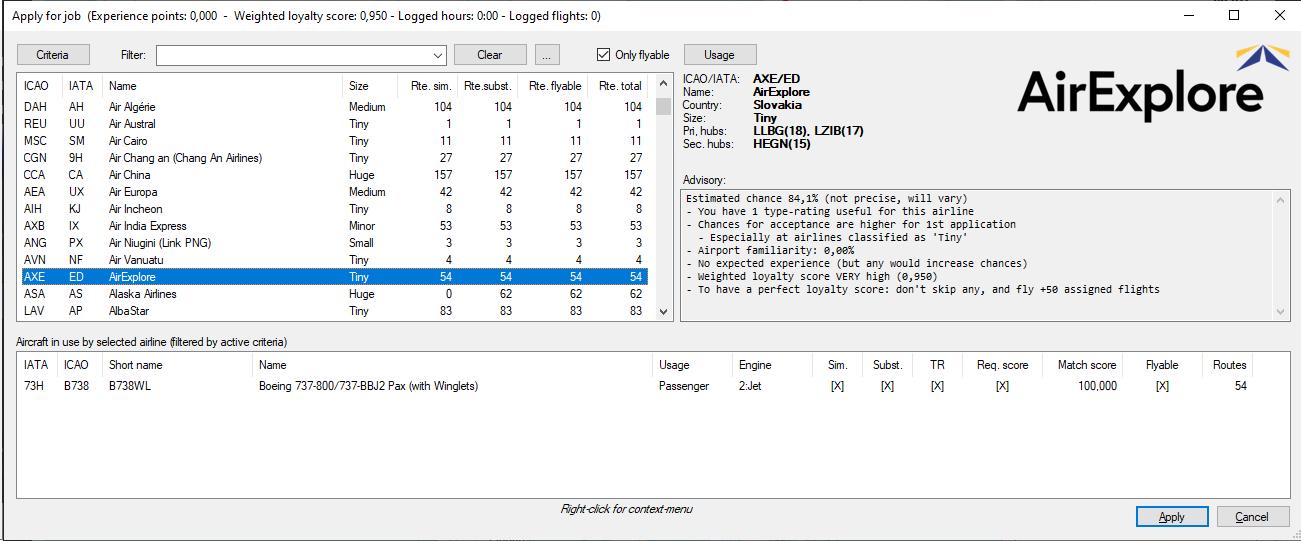
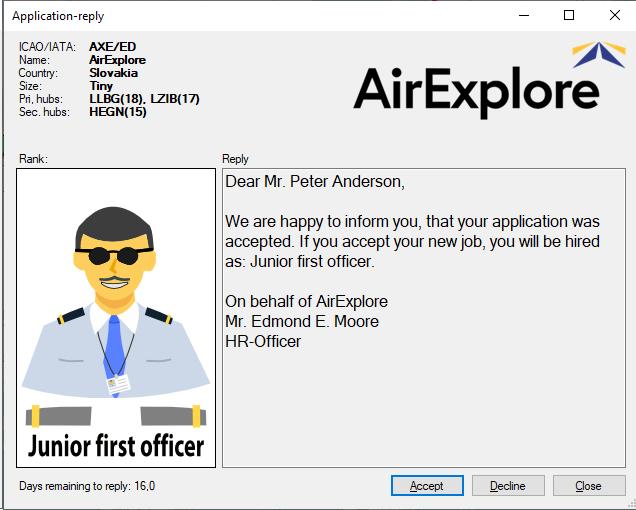
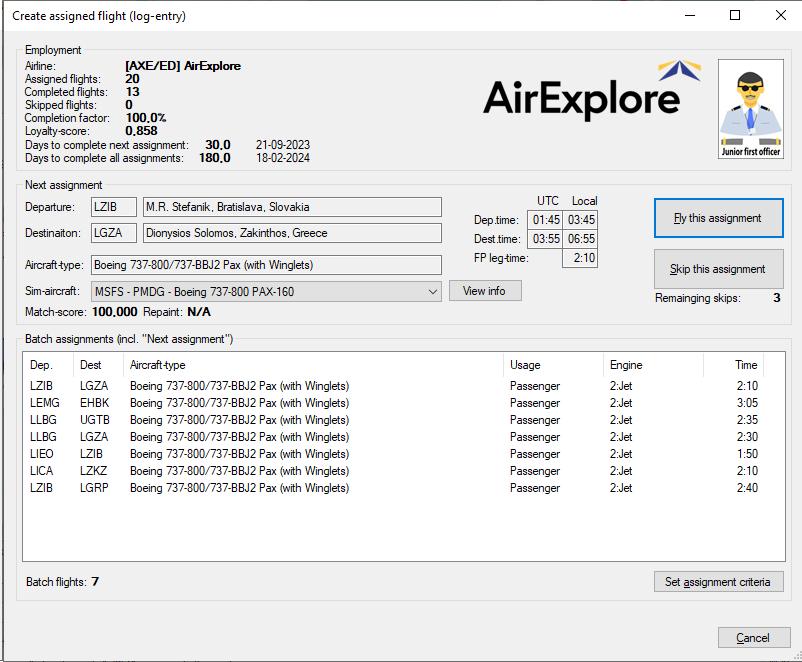
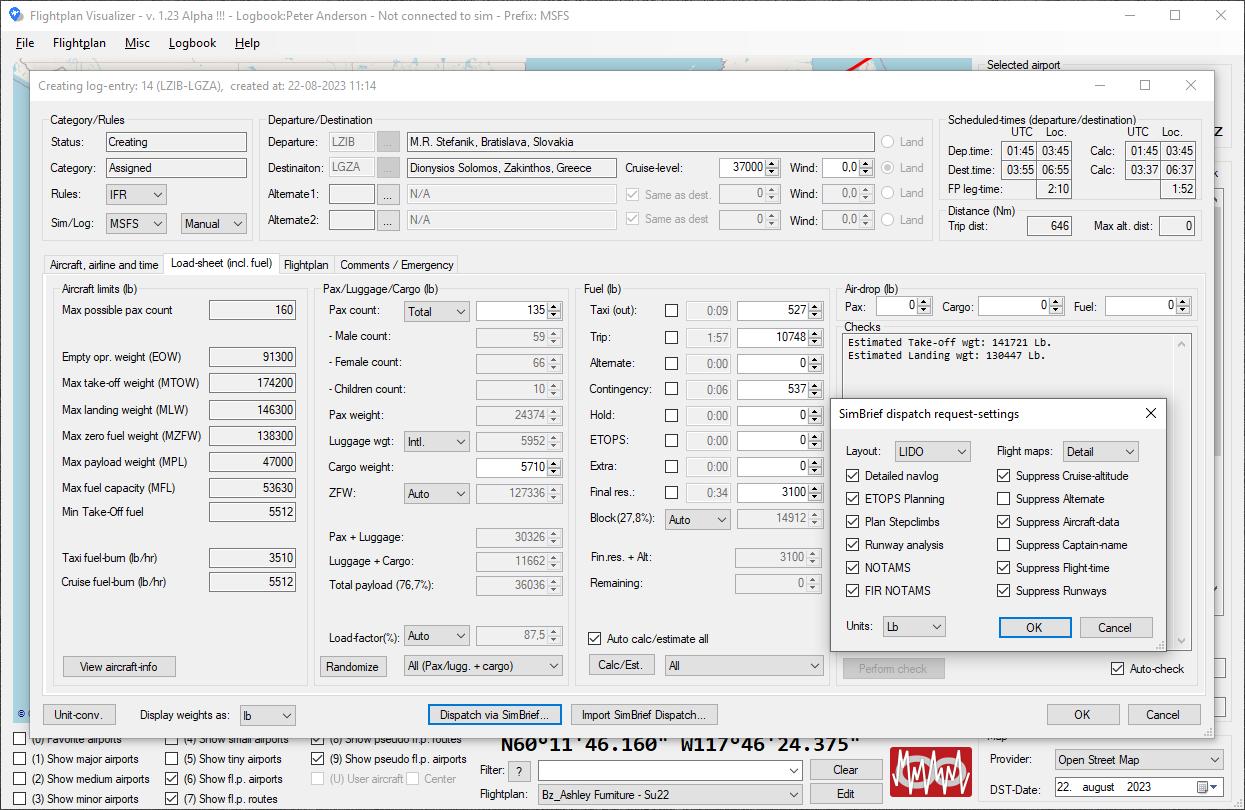
Glad to hear you like it 🙂 Personally I use it to get inspiration to which flights to fly (by getting "hired" by an airline, and being assigned flights to fly). Flightplan Visualizer in it currently release version relies on the files being generated by MakeRunways to show the gates matching your scenery. However MakeRunways is no longer being maintained and can't access MSFS 2024 scenery. So beside updating all flightplans bundled with the installer to the latest released by AIG, I am also working on being able to import data extracted by navdatareader. So when using navdatareader in stead of MakeRunways, Flightplan Visualizer should be able get all airport-info (e.g. gate-information) from MSFS2024. Hence the gate-layout depicted by FlightPlan Visualizer should match you actual installed scenery (using MakeRunway with MSFS 2020, it couldn't access 3rd party scenery installed via the Microsoft marketplace, however navdatareader can)
-
Aviationgeek15 started following pellelil
-
EDDK Enlarged gates
- 39 downloads
- Version 1.0.0
This AFCAD for Aerosoft EDDK 1.0.6 only contains a few changes in form of a few cargo parkings being extended from 33 to 36 meters, as GSX is not happy using 33 meter gates for (PMDG) 747's. Trying to invoke GSX with a 747 at these gates, you would otherwise simply be told the gate is not large enough (extending the gates to 36 meters solves this issue). The cargo parkings on the southern side of the cargo buildings are fairly close, so I have left these unchanged. Hence I've only enlarged the cargo parkings on the northern side of the cargo buildings as theses were spaced further apart, hence would not overlap when enlarged. These are parkings that were enlarged from 33 meter to 36 meter: E9, E12, E15, E17, E21, E23, E31, E33, E35, E41, E43, E45, F21, F23, F26, F31. To install this changed AFCAD file navigate to the folder where you have the Aerosoft EDDK scenery installed (e.g. "C:\Program Files (x86)\aerosoft\Cologne-Bonn Professional\Scenery"). In this folder rename the file "EDDK_ADEP4_ADE.bgl" into "EDDK_ADEP4_ADE.org" so you have a copy of the original AFCAD in case you would want to revert to it. Next copy the "EDDK_ADEP4_ADE.bgl" bundled with this readme into the same folder and you are ready to go. If you run with Flightplan Visulizer, or other software that is using the output of MakeRunways (by Peter Dowson) you should run MakeRunways after having copied the new file, to update its output files so these 3rd party programs will know about the enlarged gates. Pelle Liljendal