

About This File
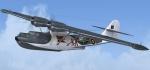
FSX Consolidated Catalina Mk.I "Jøssing II" 1945 (textures only)
A repaint of the superb payware Aerosoft Catalina package. It is painted as Catalina Mk.I JV933 "Jøssing II" from No. 333 (Norwegian) Sqn. RAF, Norway, summer 1945.
Repaint by Jens-Ole Kjølberg
Email: jekjolberg@hotmail.com
****************************************************************************************************
Installation (FsX)
---------------------------------
This zip file contains only the textures. You will also need to buy the Aerosoft Catalina package. The intended method for installation is as an optional set of markings.
A) Extract the texture files (*.bmp) in this zip file to the main Aerosoft Catalina PBY-5_MIL folder (Install with folder path "ON")
 Edit the aircraft.cfg files to add a new [fltsim.x] section that reads as follows:
(change "x" to be the next number in sequence -- don't duplicate or skip or
it will not work)
****************************************
[fltsim.xx]
title =PBY-5_Military_Jossing2
sim = PBY5_MIL
model =Vingtor
panel =
sound =
texture =Jossing_II-2
panel_alias =
sound_alias =
kb_checklists =cat_check
kb_reference =cat_ref
atc_id =JV933
atc_id_color =
atc_parking_types =RAMP
atc_parking_code =
atc_airline=
atc_flight_number=
atc_type =Consolidated
atc_model =None
ui_manufacturer ="Consolidated"
ui_type ="Catalina"
ui_variation ="PBY-5 Jøssing II of No. 333 (N) Sqn RAF 1945"
ui_typerole="Twin Engine Prop"
ui_createdby="Aerosoft"
description ="Consolidated Catalina Mk.I JV933 / KK-C "Jøssing II" of No. 333 (Norwegian) Squadron RAF, based in the recently liberated Norway, summer 1945.\n\nIt was one of two Catalinas used to carry a delegation including the Commander of the Armed Forces, Crown Prince Olav, on a tour along the entire Norwegian coastline. On this occation the small Norwegian service flags were replaced by much larger flags.
visual_damage = 0
Recommended Comments
There are no comments to display.
Create an account or sign in to comment
You need to be a member in order to leave a comment
Create an account
Sign up for a new account in our community. It's easy!
Register a new accountSign in
Already have an account? Sign in here.
Sign In Now