

About This File
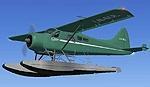
This repaint is for the FS2004 DHC2 Beaver by Aerosoft
--------------------------------------------------------------------------------------
INSTALLATION
Copy the "texture.Wideroe" folder to the aircraft folder, then cut and paste the following to the aircraft.cfg replacing the X in the first line with the next number in sequence:
fltsim.X]
title=DHC-2F Wideroe
sim=DHC-2F
model=float5
panel=
sound=
texture=wideroe
kb_checklists=DHC-2F_check
kb_reference=DHC-2F_ref
ui_manufacturer=Wideroe
ui_type=DHC-2 Floats 8 Seats
ui_variation=Wideroe
atc_heavy=0
atc_id=LN-SUL
atc_airline=Wideroe
atc_flight_number=
atc_parking_types=RAMP
description=The civilian version DHC-2 Beaver was was manufactured by de Havilland Aircraft of Canada, Ltd. from 1948 to 1969. The MKI is the mostly spread version witha 450 SHP Pratt & Whitney R985. Alternatively a MKII was developed with 550 SHP Alvis Leonides 502/4 engine. Later the less common PT6A6 turboprop powerd Beaver was built between 1964 to 1969. In total almost 1700 plans were built and many of them are beautifully restored and service for tourist flights,transportation and fun all around the world.
The aircraft will appear under the manufacturer "Wideroe" on the "CREATE A FLIGHT" page.
Why not consider joining a group of civil aviation enthusiasts who emulate the operations of the real world airline Widerøe Flyveselskap AS. http://www.virtualwideroe.org/
LEGAL
This repaint is freeware and is provided "as is". The author takes no responsibility for
any damage caused by its installation and has no obligation to support it in any way.
All other files associated with this aircraft are the property of Aerosoft.
Andrew Raney[slodog@swbell.net]
Recommended Comments
There are no comments to display.
Create an account or sign in to comment
You need to be a member in order to leave a comment
Create an account
Sign up for a new account in our community. It's easy!
Register a new accountSign in
Already have an account? Sign in here.
Sign In Now