Skip to content

toby23

Members
  • Joined

  • Last visited

  1. One month later, not a single comment from Aerosoft… what stellar customer support…
  2. Aerosoft, are you planing on fixing the grass coming through the ground at EDDS?
  3. Love the engagement from the Aerosoft staff on these forums...
  4. This airport is another masterpiece let down by this 'grass covers concrete' issue introduced by Asobo, and still not completely fixed. As this is not present in other areas of the airport, it would be nice to see the same 'surface' applied to other road and pavement areas to remove this rogue grass. To be clear, I am not referring to the lovingly crafted tufts of grass that stick out between tiles, this is rogue Asobo grass ignoring the surface type, images below.
  5. Hi @koloinflight, any news on an update from the Sim-Wings crew?
  6. I took this screenshot on finals to RWY 01 at EBBR. This is with PG on and SU2 public release. I don't know if Aerosoft consider this 'out of bounds' and up to Asobo to fix but it would be amazing to see you guys fix it and release a small patch. What do you think?
  7. @HermanHi Aerosoft, If Sim-Wings are no longer developing for MSFS, would you be able to get the files for EDDH and provide an update so that we can use this airport with the correct ILS frequencies?
  8. No problem. @Aerosoft, could you please get the ILS updated? EDDH is an important destination for a lot of your pilots!
  9. toby23 changed their profile photo
  10. Confirming that the old ILS frequency 111.50 is still active for ILS RWY 23. Aerosoft, please update this to 111.30. Your version of Hamburg is the best version! See our post on Navigraph forum here: https://forum.navigraph.com/t/eddh-rwy-23-no-ils-loc-and-g-s/19433/8 Thank you
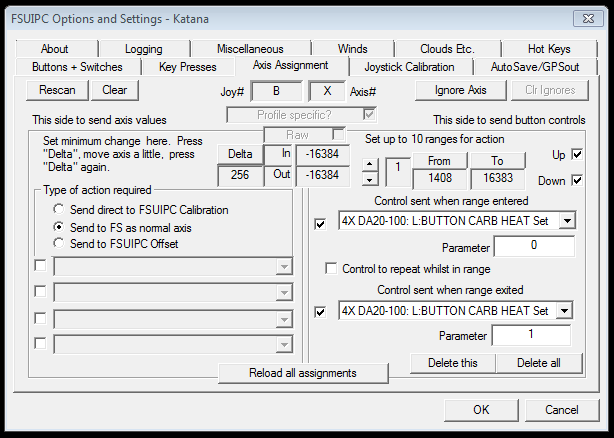
  11. For anyone else wondering how this works, I'll try to explain what I did to get it working. In FSUIPC, in the tab 'Axis Assignment': 1. Move the lever that you want to use for Carb Heat to 50% and Click 'From' 2. Move the lever to 100% and Click 'To' 3. Check that the boxes 'Up' and 'Down' are ticked 4. Select 4X DA20-100: L:Button Carb Heat Set in the 'Control sent when range entered' window 5. Enter '0' in the Parameter window 6. Select 4X DA20-100: L:Button Carb Heat Set in the 'Control sent when range exited' window 7. Enter '1' in the Parameter window See attached screenshot for how the window should look. Thanks for your help CoolP, Toby
  12. I'm training in a Katana in real life and am trying to set up the axes on my Saitek Throttle Quadrant to mimic real life i.e. left = carb heat, middle = throttle, right = prop rpm. How do I assign the left axis to Carb Heat using a registered FSUIPC? I have tried all the normal things to assign this control, including using the custom 4X commands, I can't get any to work properly. Whatever I try, the carb heat stick either flies out of the hole and disappears or moves a bit and then freezes in the open position. Your help is appreciated. Thanks. Toby
  13. I have uninstalled the previous version of the Katana and installed the newer version 1.0.3 Since installing the latest version, I have following problems: 1. Tow bar and rear weight visible in external mode, cannot remove them using Ground Attachment menu. 2. Cannot add or remove wheel fairings 3. In external view, only the pilot's hand is visible None of this happened before, any ideas? System info below. Everything is running fine, except my lovely katana. I'm training in a DV-100 in real life, so it would be nice if I could get this sim version running correctly asap. Thanks. Toby i7 2600K • 8GB RAM • GTX 580 3GB SLI • Win 7 64 • FSX Acceleration
  14. If I win, I would like to get the German Airfields 2 - Nordlichter set, so that I can practice circuits at my real life training airport... That would be cool!
  15. It's the same one Eric. I can't do any more than change the skin, the way the light is reflected is defined by Marcel in the model.
  16. Uploaded to Download section

Important Information

We have placed cookies on your device to help make this website better. You can adjust your cookie settings, otherwise we'll assume you're okay to continue. Privacy Policy & Terms of Use

Account

Navigation

Search

Search

Configure browser push notifications

Chrome (Android)
  1. Tap the lock icon next to the address bar.
  2. Tap Permissions → Notifications.
  3. Adjust your preference.
Chrome (Desktop)
  1. Click the padlock icon in the address bar.
  2. Select Site settings.
  3. Find Notifications and adjust your preference.