
CaptKornDog
-
Posts
165 -
Joined
-
Last visited
-
Days Won
1
CaptKornDog's Achievements






-

October's Screenshot Contest: Night Ops
CaptKornDog replied to kroswynd's topic in Videos & Screenshots, Screenshot contests
, -
December's Screenshot Contest -
CaptKornDog replied to kroswynd's topic in Videos & Screenshots, Screenshot contests
, -
December's Screenshot Contest -
CaptKornDog replied to kroswynd's topic in Videos & Screenshots, Screenshot contests
, -
,
-
July's Screenshot Contest: Climbing Out
CaptKornDog replied to kroswynd's topic in Videos & Screenshots, Screenshot contests
, -
,
-
,
-
CRJ pro performance issues in both p3dv5 and v4.5
CaptKornDog replied to Manuel C's topic in General discussion and support
, -
Repaint requests (A330)
CaptKornDog replied to Tom A320's topic in Repaints \ Liveries \ Livery Manager
, -
Repaint requests (A318, A319, A320, A321)
CaptKornDog replied to Tom A320's topic in Repaints \ Liveries \ Livery Manager
, -
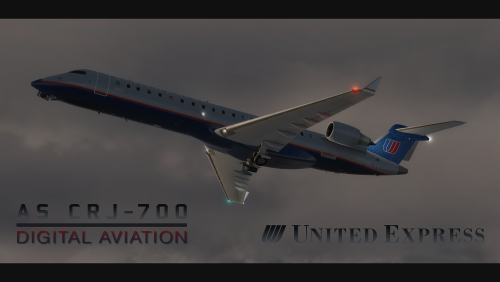 Looks great! Would love to see the original nose cone and Tulip/explus variants as well from this painter!
 -
CaptKornDog changed their profile photo
-
Hello,
I was unable to post in the Airbus discussion/feature thread before it was removed. If you are still seeking honest opinions, that aren't attacks on either product, feel free to private message me. I've been a simmer for over 20 years, was Flight Test Engineer for 7 years with some A318/A319/A320 experience, and know what I personally consider and look for carefully before purchasing Flight Simulation products.
-