

About This File
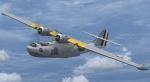
Repaint of Aerosoft PBY
PBY-5
Repaint by Tom Stovall for the Aerosoft PBY PBY-5, using the Aerosoft PBY paint kit developed by the Aerosoft team. You must have purchased the Aerosoft PBY to use these textures. This PBY was number 1224 of VP-102 Sangley Point, Philippines 1941.
Installation:
Copy the following lines into your Aerosoft_PBY-5_Mil aircraft .cfg file changing the [fltsim.x] to the appropriate next number in line. Copy the texture.VP102 folder into your Aerosoft_PBY-5_Mil folder.
[fltsim.x]
title =PBY-5_Military_VP-102
sim = PBY5_MIL
model =JIP30
panel =
sound =
texture =VP102
panel_alias =
sound_alias =
kb_checklists =cat_check
kb_reference =cat_ref
atc_id =W8416
atc_id_color =
atc_parking_types =RAMP
atc_parking_code =
atc_airline=
atc_flight_number=
atc_type =Consolidated
atc_model =None
ui_manufacturer ="Consolidated"
ui_type ="Catalina"
ui_variation ="PBY-5 Navy VP-102"
ui_typerole="Twin Engine Prop"
ui_createdby="Aerosoft"
description ="The Consolidated PBY Catalina was an American flying boat designed and produced by Consolidated Aircraft in the 1930s and 1940s.\n\n It served with all branches of the U.S. Armed Forces and with air forces and navies of many other countries.\n\n It is also known as the OA-10 (U.S. Air Force) and Cansos (Canadian build models). This British model was operated by the No. 210 Squadron.\n\n It flew mainly convoy escort duties and anti-submarine operations during the Second World War." Repaint by Tom Stovall
visual damage = 0
This repaint is Freeware and is to be used as such.
They are not to be uploaded to any other sites without the express written consent of the author
Visit my site:
Toms Fligh tSims
Tom Stovall
stovall@shasta.com
Recommended Comments
There are no comments to display.
Create an account or sign in to comment
You need to be a member in order to leave a comment
Create an account
Sign up for a new account in our community. It's easy!
Register a new accountSign in
Already have an account? Sign in here.
Sign In Now